
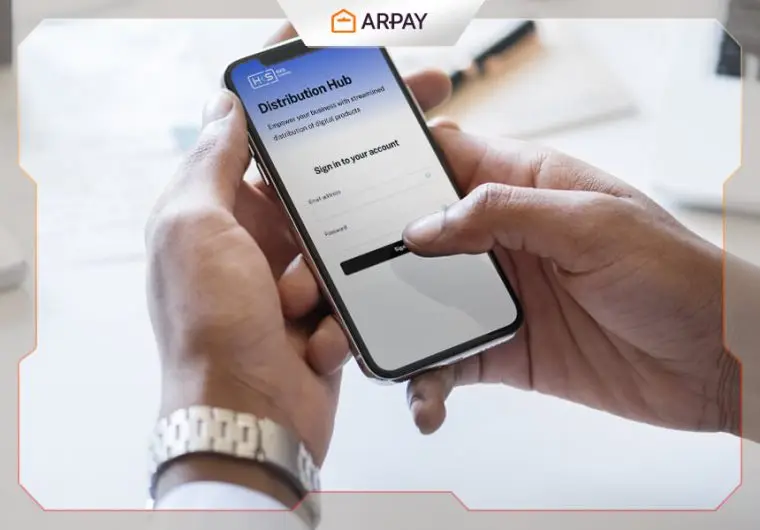
- b2b.hksglobal.group/login
First, you need to log in here. Please note that you’ll need to download Google Authenticator on another device, as you will need to scan the QR code and ebkb-nter the OTP there.
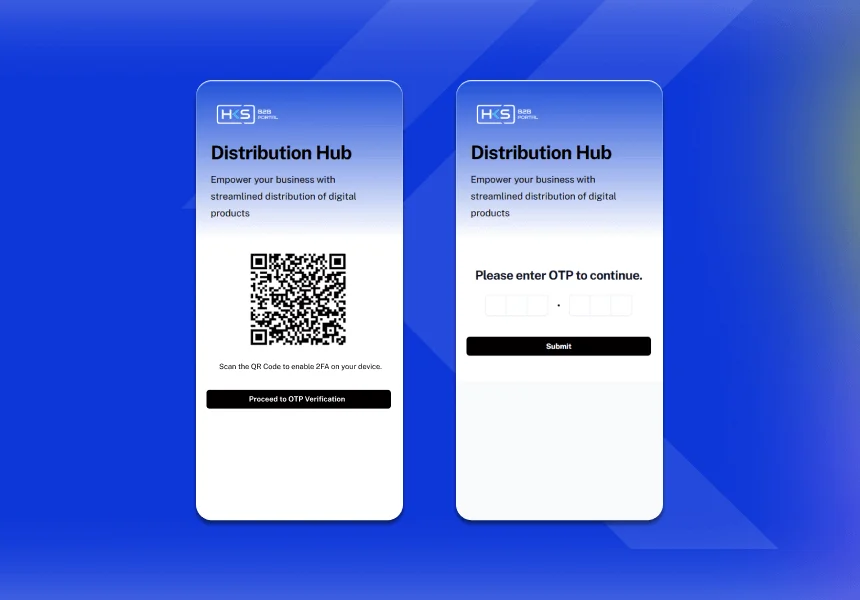
2. After you log in to your CRM, please go to https://ar-pay.com/en and log in to access ARPAY gift cards.
https://ar-pay.com/en/product/ar-pay-gift-card-1000
https://ar-pay.com/en/product/ar-pay-gift-card-300
https://ar-pay.com/en/product/ar-pay-com-gift-card-150
https://ar-pay.com/en/product/ar-pay-com-gift-card-5
https://ar-pay.com/en/product/ar-pay-com-gift-card-100
https://ar-pay.com/en/product/ar-pay-com-gift-card-50
https://ar-pay.com/en/product/ar-pay-com-gift-card-10
https://ar-pay.com/en/product/ar-pay-com-gift-card-1
https://ar-pay.com/en/product/ar-pay-gift-card-500
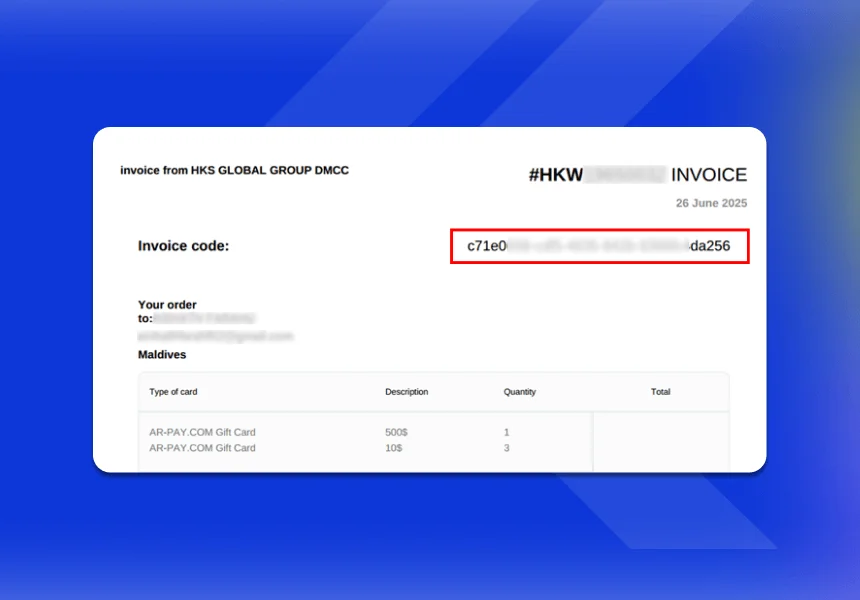
3. For each completed ARPAY gift card order, you will receive an automatic invoice. Please copy the invoice number from the top right corner.
4. Go to your CRM account, and you will see an option called ‘TOP UP.’ Paste it there, and always remember to choose ‘Redeem by Invoice Code.
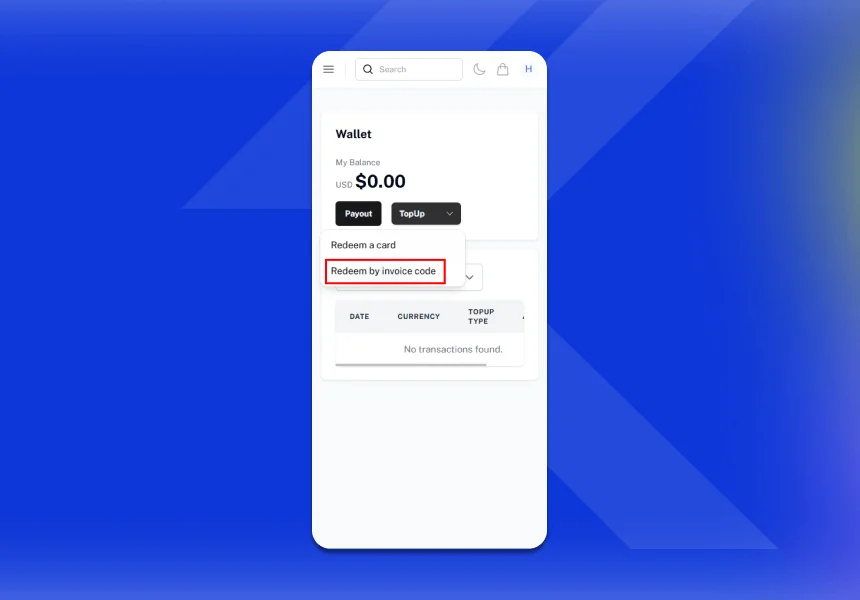
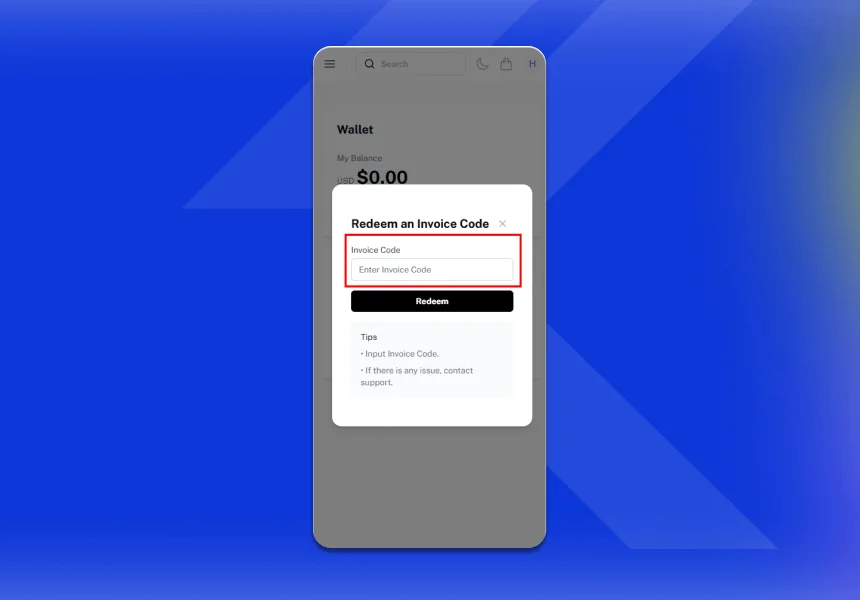
5. After this, your total balance in the CRM will be updated with the amount immediately, and you can use this balance to generate gift card products as usual.
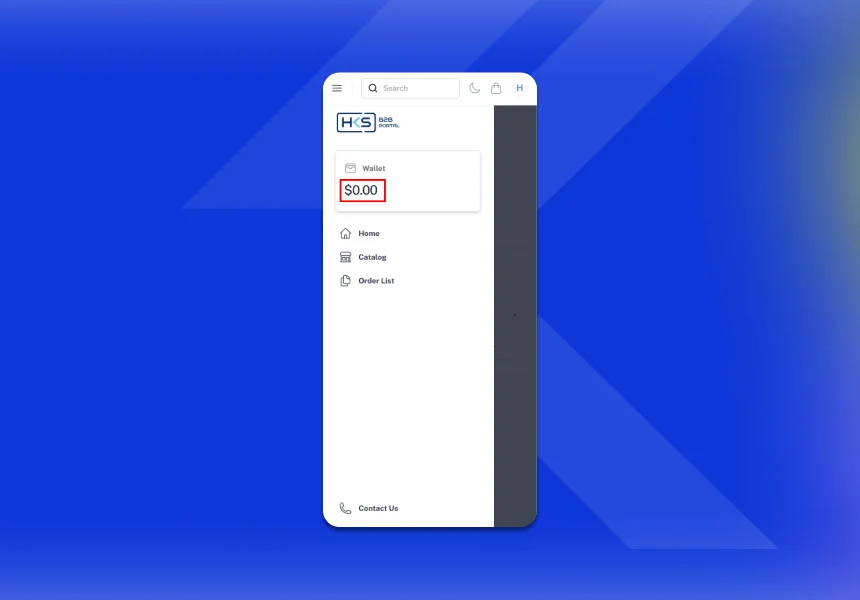
Note:
Keep in mind that you should always use the B2B Card USD Gateway for purchases.
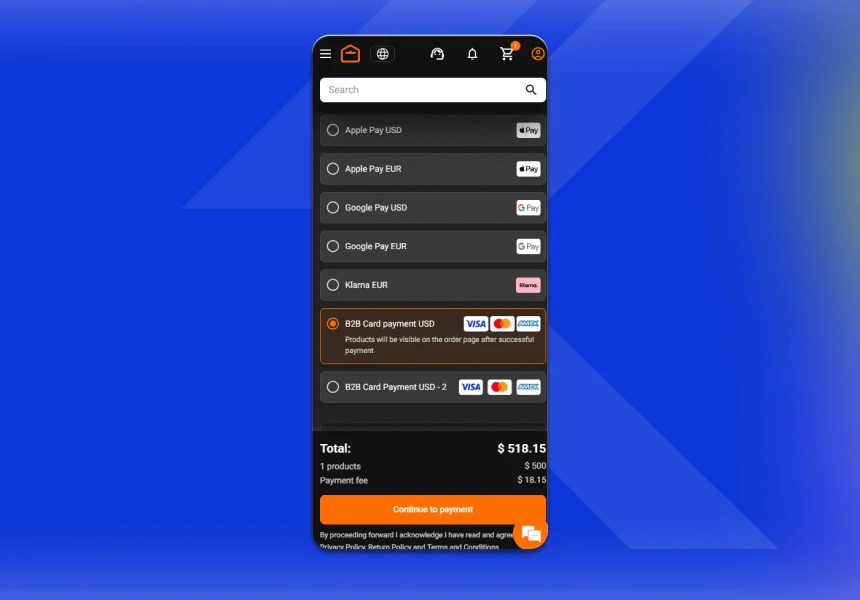
If you get the following message:
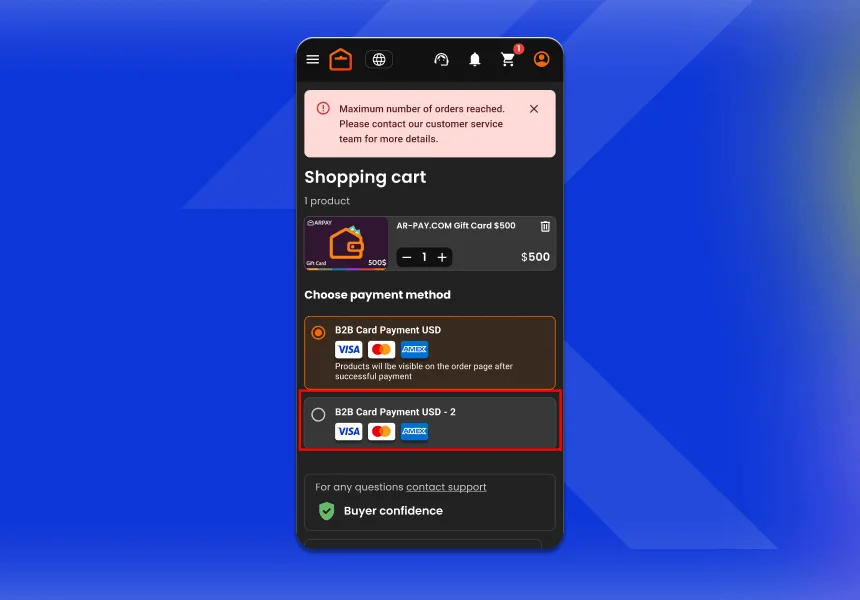
Please switch to our second gateway to access the new daily limits.

Affan
Hi, I'm Mahmoud Affan, a blog writer and content creator at Arpay, my strong research skills help me deliver reliable and informative content. I have a passion for all things related to entertainment and shopping, so if you are a fan of e-gaming and shopping, you will enjoy reading the articles here.