
Finding the right sensitivity in Apex Legends saves you hours of trial and error. Many players chase new settings every week and end up losing more shots instead of fixing their aim. You do not need expensive gear or a long list of tweaks. You only need settings that help you stay steady, learn your aim faster, and avoid costly upgrades.
- Apex Legends Mouse Sensitivity Settings That Keep You Steady
- Apex Legends Graphics Settings That Boost FPS Without Upgrading Gear
- Apex Legends Controller Sensitivity for Console Players Who Want Reliable Aim
- 4 Helpful Tips to Get More Aim Control
- How To Choose Sensitivity That Fits Your Playstyle in Apex Legends
- Quick Summary Settings Table
- Conclusion
- FAQs
These settings come from pro data and practical testing. They offer a smart starting point if you want consistent aim without spending extra.
grab an Apex Legends Gift Card, top up your Apex account in seconds, unlock the tools you need, and get back to winning faster with no delays.
Apex Legends Mouse Sensitivity Settings That Keep You Steady
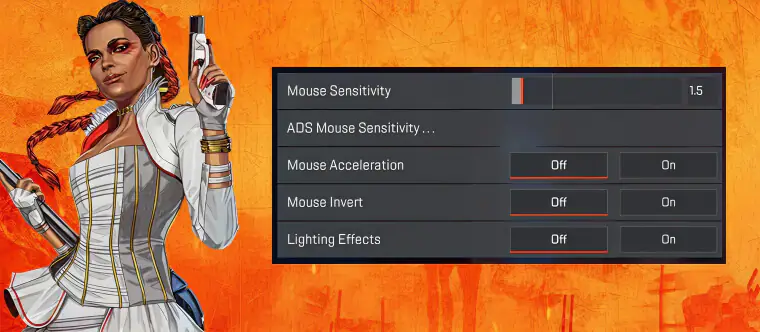
PC players tend to overthink sensitivity. A simple setup works best when you want fast results.
The most balanced starting point is 1200 eDPI using 800 DPI and 1.5 sensitivity. It gives you smooth control and enough speed to track targets.
Other setups you can try:
- 400 DPI and 3.0 sensitivity
- 1200 DPI and 1.0 sensitivity
- 1600 DPI and 0.75 sensitivity
These choices depend on your desk space. Lower DPI needs larger hand movement. Higher DPI suits small mousepads.
ADS sensitivity works best at 1.0. The same value across all scopes helps your aim feel stable at every range.
Turn off mouse acceleration inside the game and in Windows settings. Keep your polling rate at 1000Hz so your mouse updates faster.
Read Also: Master Every Genre: FPS Game 101 Guide for Beginner – Part 4

Apex Legends Graphics Settings That Boost FPS Without Upgrading Gear
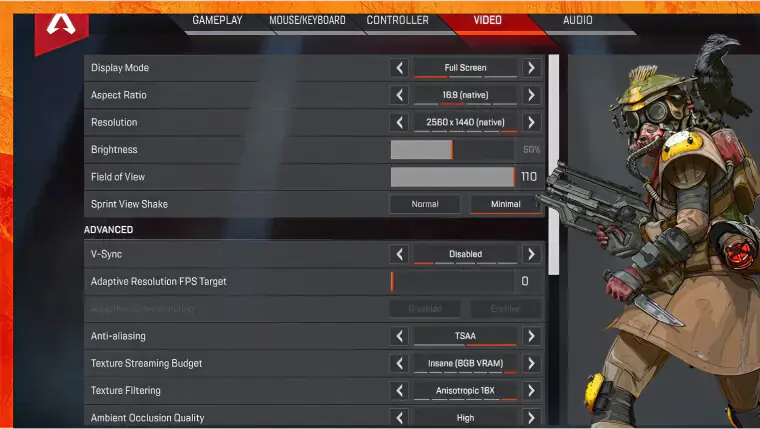
Most players want higher FPS but do not want to buy a new PC. A few small adjustments can help your aim feel lighter and smoother.
Use these baseline settings:
- Display mode: Full Screen
- Resolution: 1920×1080
- V-Sync: Off
- Reflex: Enabled plus Boost
- FOV: 104 to 110
- Anti-aliasing: Off
- Texture budget: Low to Medium
- Ambient occlusion: Off
- Shadows: Low or Off
- Volumetric lighting: Off
- Model detail: Low
These settings help you avoid frame drops in fights. Stable FPS gives you better tracking and keeps your aim steady even in busy zones.
Apex Legends Controller Sensitivity for Console Players Who Want Reliable Aim
Console players rely on steady movement and smooth stick control. You do not need high settings to keep up with other players.
Use Button Puncher layout to crouch and slide without lifting your thumb far from the stick.
The best values to start with:
- Look sensitivity: 4
- ADS sensitivity: 3
- Response curve: Classic
- Deadzone: Small
- Target assist: On
- Vibration: Off
These values help you track targets without feeling shaky. They give you a slow enough aim to hit long shots and fast enough movement for close fights.
4 Helpful Tips to Get More Aim Control
You can improve your aim even if your setup is old. These steps cost nothing and make a real difference.
- Turn off mouse acceleration in Windows
- Use a monitor with 144Hz or higher if you already own one
- Cap your FPS to match your monitor
- Test new values in the Firing Range for a few minutes before jumping into matches
Small tweaks help you learn your aim faster and avoid confusion.
How To Choose Sensitivity That Fits Your Playstyle in Apex Legends
- Picking a random pro setting can waste your time. Your comfort matters more than matching a streamer.
- Low sensitivity suits players who drag their hand more. It gives you strong tracking in close fights.
High sensitivity suits players with small desks or who like faster turns. - Pick a value, stick with it for a few days, and only change it if you cannot land basic shots.
Mistakes That Make Players Lose Fights
Some habits make your aim worse even with good settings.
- Switching sensitivity too often
- Using heavy graphics that drop FPS
- Ignoring ADS values
- Copying settings without testing them first
- Turning up sensitivity to feel fast
A stable setup removes guessing and helps you learn faster.
Quick Summary Settings Table
| Category | Recommended Setting |
| DPI | 800 |
| Sensitivity | 1.5 |
| eDPI | 1200 |
| ADS Sens | 1.0 |
| Acceleration | Off |
| Polling Rate | 1000Hz |
| Controller Look | 4 |
| Controller ADS | 3 |
| Response Curve | Classic |
| Deadzone | Small |
These values work as a strong start for most players.
Conclusion
Apex Legends sensitivity does not need to feel confusing. A balanced setup helps you stay steady, avoid extra spending, and build aim control without stress. The key is picking one setup and learning it well.
Power up your gameplay instantly with ARPay. Your aim deserves better than endless trial and error.

FAQs
Should I copy pro sensitivity settings in Apex Legends?
You can use them as a base, but you should test them and adjust slowly. Every player moves differently.
Is a higher DPI better in Apex Legends?
Not always. Higher DPI is fine for smaller mousepads but can feel shaky for large hand movements.
What is the fastest way to improve my aim in Apex Legends?
Use one sensitivity for a few days, practice in the Firing Range, and avoid changing settings often.

Hager Hesham
Content Writer and your go-to gaming expert. I'm here to share my best practices, valuable strategies, and professional gamer guidance. Also, I'm a gem hunter for the best deals and gift cards, just to enjoy games at almost zero cost with AR-pay.