
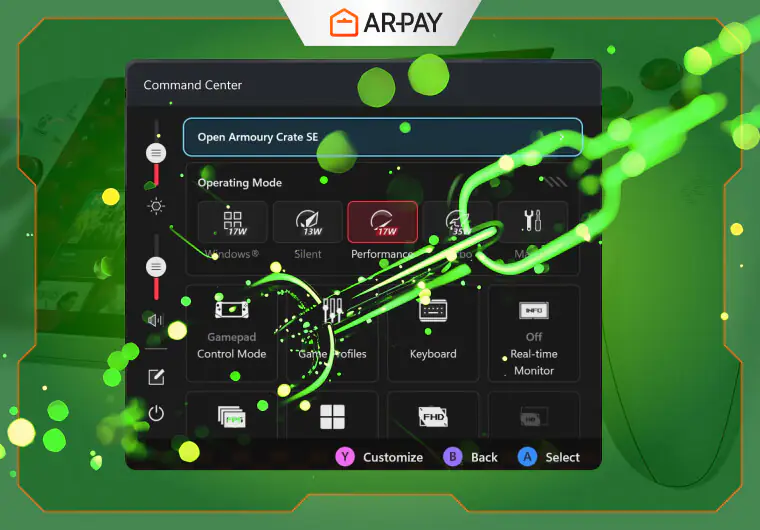
So, you just unboxed your shiny new Xbox Ally. Congratulations! You’re holding a powerful handheld gaming PC that promises console-level gaming on the go. But before you jump into your first game, there are a few crucial things to do. This ROG Xbox Ally beginner guide will walk you through the essential first steps to avoid common frustrations and unlock your device’s true potential. Let’s get started.
- Xbox Ally First Time Setup: Update Everything Before You Play
- ROG Xbox Ally Getting Started: Master the Unique Buttons
- Xbox Ally Tips and Tricks: Enable Offline Permissions for Travel Freedom
- Step-by-Step Xbox Ally Offline Gaming Setup
- Xbox Ally Setup Guide: Optimize Performance Modes in Armoury Crate
- Xbox Ally X Setup Guide: Protect Your Battery With Care Mode
- How to Set Up Xbox Ally Gaming Library: Install Essential Apps & Remove Bloat
- Xbox Ally Tips and Tricks: Accessory Upgrades That Transform Your Ally
- Conclusion
- FAQ
Xbox Ally First Time Setup: Update Everything Before You Play
I know it’s tempting to start gaming immediately. But trust me on this. Spending 30 minutes on updates now will save you hours of headaches later. The Xbox Ally is a Windows 11 handheld, which means it relies on several systems working together. Neglecting updates is the number one cause of performance issues and missing features for new owners.
Run Armoury Crate Updates First
What is Armoury Crate on Xbox Ally? It’s your command center. This ASUS tool manages everything from performance modes to controller settings. It also handles critical driver and firmware updates that Windows Update might miss. This is the most important part of your Xbox Ally first time setup.
- Open the Armoury Crate SE app (it has a distinct ROG logo).
- Navigate to the “Content” tab, then select “Update Center.”
- Click “Check for Updates” and install everything listed. This includes firmware, drivers, and the app itself.
This single step ensures your device’s core components are communicating correctly. It’s a vital part of any Xbox Ally optimization guide for beginners.
Don’t Skip Windows Update Essentials
Next, dive into the standard Windows updates. These updates provide security patches and core system stability improvements. Skipping them can lead to unexpected crashes, game stuttering, and compatibility problems. This is a non-negotiable step in our Xbox Ally Windows 11 updates guide.
- Press the Windows button or tap the icon on the taskbar.
- Go to Settings > Windows Update.
- Click “Check for updates” and let it download and install everything it finds.
- You may need to restart your Ally one or two times to complete the process.
Check the Microsoft Store & Xbox App
Finally, update your apps. The Xbox app is your gateway to Game Pass and your library. An outdated version can cause major issues. I once spent an hour trying to figure out why a friend couldn’t access cloud gaming. The solution? A simple update in the Microsoft Store. It’s one of those simple Xbox Ally tips and tricks that makes a huge difference.
- Open the Microsoft Store app.
- Click on the “Library” icon in the bottom-left corner.
- Press the “Get updates” button and let it run.

ROG Xbox Ally Getting Started: Master the Unique Buttons
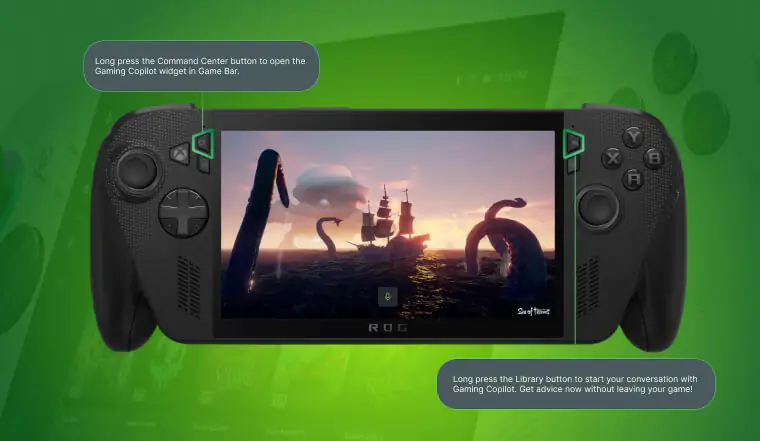
The Xbox Ally has a few special buttons that aren’t on a standard Xbox controller. Learning them is key to a smooth handheld experience. New owners often get frustrated by accidentally opening the wrong menu. Let’s clear up the confusion.
I remember my first day, constantly mixing up the Armoury Crate and Xbox buttons. One took me to my games, the other to performance settings. It was confusing until I learned their specific roles.
Xbox Button Shortcuts
This button works just like it does on a console controller. It’s your main navigation tool for the Xbox ecosystem.
- Quick Press: Opens the Xbox Game Bar. This gives you quick access to friends, achievements, and performance widgets.
- Long Press: Launches the Xbox app, taking you directly to your aggregated library and the Xbox Full Screen Experience.
The Armoury Crate Button
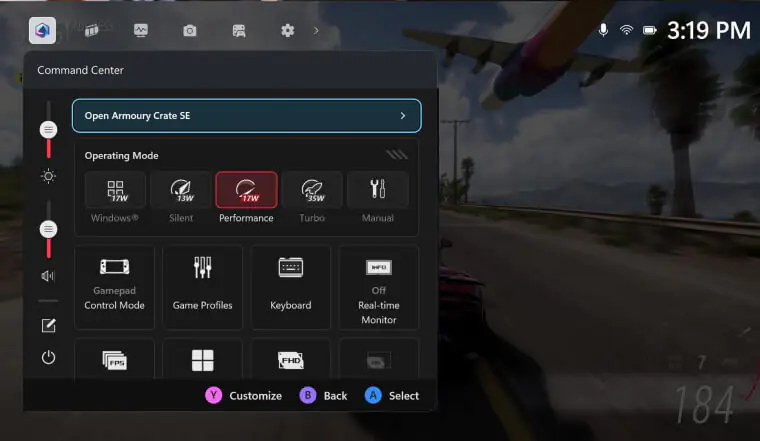
This button, located on the right, opens the Armoury Crate SE software. This is where you control the device’s hardware settings. Use it to quickly adjust performance modes, which is crucial for managing battery life versus power.
Library Button Tricks
The button on the left with a book-like icon is your shortcut to the Armoury Crate game library. It’s a fantastic feature that pulls all your installed games from Steam, Epic, and Xbox into one clean interface. A single press gets you right to your collection without navigating through different launchers.
Looking for more remarkable games? Explore some of Xbox gems: Top Xbox Picks for The Year!
Xbox Ally Tips and Tricks: Enable Offline Permissions for Travel Freedom
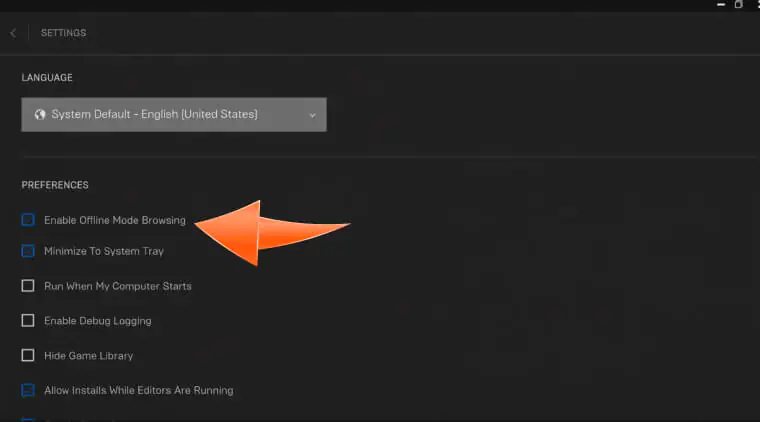
One of the best things about a portable gaming device is playing anywhere. But what happens when you’re on a plane or a train with no Wi-Fi? Without setting up offline permissions, your Game Pass titles won’t launch. This is a critical step for any gamer on the go.
Why Offline Mode Matters
Imagine being halfway through a long flight, ready to continue your adventure in Hollow Knight, only to be met with an error message. That’s what happens if your device can’t verify your game license online. Enabling offline mode prevents this. A friend who commutes daily by train swears by this feature. It lets him play his Game Pass library uninterrupted.
Step-by-Step Xbox Ally Offline Gaming Setup
Setting this up is simple, but you must do it while you have an internet connection.
- Open the Microsoft Store app. Click your profile picture and go to “Settings.”
- Under “Offline Permissions,” toggle the switch to “On.” You can only have one device designated as your offline PC at a time.
- Next, open the Xbox app. Click your profile picture and select “Settings.”
- Go to the “General” tab and ensure your device is enabled for offline play.
- Launch any Game Pass games you want to play offline at least once while connected to the internet. This downloads the necessary license.
Understanding the Limitations
Keep in mind that these offline licenses need to be refreshed. You’ll need to connect your Xbox Ally to the internet at least once every 14 days to re-verify your Game Pass subscription and keep your offline access active.
Xbox Ally Setup Guide: Optimize Performance Modes in Armoury Crate
The Xbox Ally operating modes are the key to balancing power and battery life. Understanding the different TDP (Thermal Design Power) settings will transform your gaming experience. You can access these through the Armoury Crate button or the Command Center (the small button above the right joystick).
Silent Mode (Up to 13W)
This low-power mode is perfect for light tasks and less demanding games. It keeps fan noise down and maximizes battery life.
- Best for: Indie games, 2D platformers, visual novels, and streaming video.
- Battery Life: Expect the longest battery duration in this mode, often 3-4 hours.
Performance Mode (17-20W)
This is the default, all-around mode. It offers a great balance between smooth frame rates and reasonable battery consumption. It’s the best setting for most new owners to start with.
- Best for: Most modern games, including many AAA titles at medium settings.
- Battery Life: Typically provides 1.5 to 2 hours of gameplay.
Turbo Mode (Up to 30W)
When you want maximum power, Turbo Mode is your answer. It pushes the AMD Ryzen Z2 processor to its limits. This mode is best used when your Xbox Ally is plugged into a power source, as it drains the battery very quickly.
- Best for: Demanding AAA titles like Cyberpunk 2077 or Starfield for the highest possible frame rates.
- Warning: Switching performance modes while in an online multiplayer game can sometimes trigger anti-cheat software. It’s best to set your mode before launching the game.
Xbox Ally X Setup Guide: Protect Your Battery With Care Mode
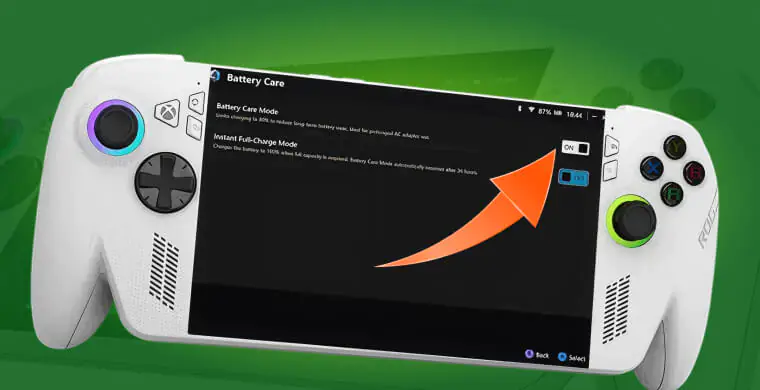
Like a smartphone, the lithium-ion battery in your Xbox Ally will degrade over time. To slow this process, ASUS included a brilliant feature called Battery Care Mode. This is one of the best ways to maximize Xbox Ally battery life in the long term.
Battery Care Mode Basics
This feature, found in the MyASUS app, limits the battery’s maximum charge to 80%. Why? Constantly charging a battery to 100% and leaving it plugged in puts stress on it. Capping the charge reduces this stress, significantly extending the battery’s overall health and lifespan. Many users report their battery health stays near 100% even after a year of use with this mode enabled.
Instant Full-Charge for Travel
Worried you’ll need that extra 20% for a long trip? No problem. The MyASUS app has an “Instant Full-Charge” option. This temporarily overrides the 80% cap and charges the battery to 100%, giving you maximum playtime when you need it most.
How to Set Up Xbox Ally Gaming Library: Install Essential Apps & Remove Bloat
Your Xbox Ally is a full Windows PC. That means you’re not limited to just the Xbox ecosystem. You can install other game launchers to expand your library and remove pre-installed apps to free up space.
Steam, GOG, and Other Launchers
Yes, the Xbox Ally can play Steam games! It can also run games from GOG, the Epic Games Store, and more. Installing these launchers is as simple as downloading them from their websites. This turns your Ally into a true all-in-one portable PC gaming machine.
Streamline Your Library
To make managing multiple libraries easier, consider tools like One Game Launcher or SteamGridDB. These help you create a unified, visually appealing interface for all your games, regardless of where you bought them.
Uninstall Unnecessary Apps
Your Ally comes with some pre-installed software you might not need, like Microsoft Teams or trial versions of McAfee. A gamer I know uninstalled these and a few other unused Windows apps. He reported that his game load times improved, and he freed up several gigabytes of valuable SSD space.
Xbox Ally Tips and Tricks: Accessory Upgrades That Transform Your Ally
The Xbox Ally is great out of the box, but a few key accessories can elevate the experience from good to amazing. These are some of the best investments you can make.
MicroSD Cards for Storage Expansion
With AAA games often exceeding 100GB, the internal storage can fill up fast. A high-speed microSD card is a budget-friendly way to add more space. Look for a U3/A2 rated card for the best performance when running games directly from it.
Screen Protectors & Cases
This is a portable device, so protecting it is a must. A tempered glass screen protector will guard against scratches without affecting touch sensitivity. A good carrying case will protect it from drops and bumps. A traveler I follow online swears by his Tomtoc bag, which safely holds his Ally, charger, and a power bank.
Docking Stations for Big-Screen Play
Want a console-like experience? A docking station lets you connect your Xbox Ally to a TV or monitor. You can also connect a keyboard, mouse, and external controller. This turns your handheld into a versatile desktop gaming rig or a living room console.
Conclusion
The Xbox Ally isn’t just a plug-and-play device; it’s a customizable powerhouse. By following this starter guide, you’ve laid the foundation for a stable, high-performance gaming experience. You’ve updated its core systems, mastered its controls, and optimized its battery for the long haul. Now you know how to set up your Xbox Ally for success.
If you found this guide helpful, share it with other new Ally owners to save them time and frustration. Bookmark this page and come back for more advanced tips on overclocking, streaming setups, and in-depth accessory reviews.
Get your subscription instantly with a digital code. Visit ARPay to buy an XBOX gift card and redeem it for Game Pass today!

FAQ
What should I do first with my new Xbox Ally?
The absolute first thing you should do is update everything. Run updates in Armoury Crate, Windows Update, and the Microsoft Store. This prevents most common performance and stability issues new owners face.
How many hours does the Xbox Ally battery last?
Battery life varies greatly depending on the performance mode. In Silent Mode for light games, you can get 3-4 hours. In Performance Mode for most games, expect 1.5-2 hours. In Turbo Mode for demanding AAA titles, it can be around 1 hour.
Can the Xbox Ally play games from Steam?
Yes, absolutely. The Xbox Ally is a full Windows 11 PC. You can download and install Steam, the Epic Games Store, GOG, and any other PC game launcher to play your existing libraries.

Hager Hesham
Content Writer and your go-to gaming expert. I'm here to share my best practices, valuable strategies, and professional gamer guidance. Also, I'm a gem hunter for the best deals and gift cards, just to enjoy games at almost zero cost with AR-pay.