
Google Play Games is an easy gateway to an endless universe of games, where every adventure is just a tap away on your phone or PC.
Whether you’re looking to conquer epic challenges or connect with friends across the globe, this app is your key to limitless entertainment.
In this guide, we’ll show you how to unlock the full potential of Google Play Games, transforming your gaming experience into something truly extraordinary.
Unlock Endless Adventures: Buy Your Google Play Gift Card Today and Explore Unlimited Gaming Fun!
About Google Play Games
Google Play Games is your go-to platform for a unified and streamlined gaming experience across Android devices and PCs.
Whether you’re on your smartphone or enjoying the action on a larger PC screen, this app allows you to explore, play, and manage your games with ease.
With features like instant play, jumping into your favorite titles has never been easier.

Key Features Of Google Play Games
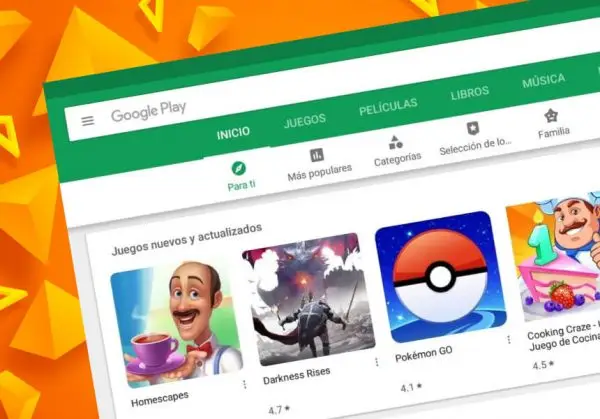
- Seamless Cross-Platform Play: Enjoy gaming on both Android and Windows PCs, with the ability to switch devices without losing progress.
- Enhanced PC Experience: Play on a bigger screen with the precision of mouse and keyboard controls for an elevated gaming experience.
- Instant Play: Quickly access and start games without the wait, bringing you into the action faster than ever.
- Developer Tools: For game creators, Google Play Games offers tools to add social features, track gameplay stats, and enable cross-platform gameplay across Android, ChromeOS, and Windows.
Using gift cards from a trusted website like ARPAY enhances your experience whether you are looking for Apps from Google Play or looking for the best games.
Getting Started with Google Play Games
Jumping into the world of Google Play Games is easy and quick. Follow these simple steps to get started and customize your gaming experience:
- Download the App: Head to the Google Play Store on your Android device and download the Google Play app.
- Create an Account: Open the app and tap your profile picture or initial in the top right corner. Select “Create an account” and follow the prompts to set up your Google account, including entering your name, date of birth, and phone number.
- Sign In: Once your account is created, sign in using your Google account email address and password.
- Set Up Your Gamer Profile: Upon signing in, you’ll be prompted to create a unique gamer ID and choose a profile picture. This will be your identity in the gaming world. Don’t worry, you can always edit it later by tapping on your profile picture and selecting “Edit.”
- Adjust Privacy Settings: Control who sees your game activity, achievements, and leaderboards by tweaking your privacy settings. Simply go to Settings within the app, then select “Privacy settings” to make your choices.
- Enable Automatic Registration: Save time by turning on automatic registration for supported games. Go to Settings, then select “Automatic registration for supported games” to streamline your gaming experience.
Check this and elevate your experience with ARPAY Blog: Google Play Gift Cards 101… Where to Buy & How to Manage
Exploring Top Game Options
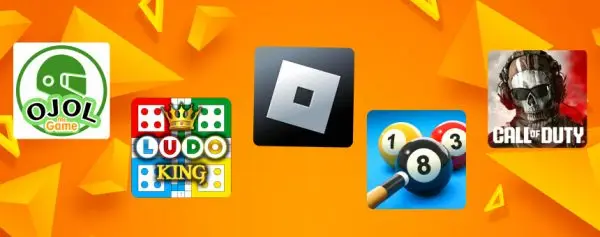
Before heading to your Google Play app let’s discover its top games:
- Ojol The Game: Step into the shoes of an online motorcycle taxi driver in this wildly popular casual game, enjoyed by over 16 million players. Upgrade your bike, complete challenging orders, and strive to become the top ojol driver in the bustling streets.
- Ludo King: Relive the nostalgic charm of the classic board game with Ludo King, a global hit boasting around 14 million downloads. Play with friends and family, explore new themes, and chat while you strategize and roll the dice.
- Roblox: Unleash your imagination on Roblox, the ultimate platform for creating, sharing, and playing games crafted by millions of users around the globe. Whether you’re building worlds or exploring them, the possibilities are endless in this virtual universe.
- 8 Ball Pool: Challenge your friends or compete against players worldwide in 8 Ball Pool, the world’s leading pool game. Win tournaments, collect trophies, and personalize your cues in this highly addictive billiards experience.
- Call of Duty®: Warzone™ Mobile: Feel the adrenaline of battle royale on the go with Call of Duty®: Warzone™ Mobile. Dive into intense multiplayer matches, explore iconic maps, and experience cutting-edge graphics right on your mobile device.
Common issues and how to fix them
Google Play Games is a popular platform for Android gamers, but issues can arise. Here are some quick fixes:
Game Crashes or Freezes
- Clear Cache: Go to Settings > Apps > Google Play Games > Storage > Clear Cache.
- Update: Ensure the app and game are up to date.
- Restart Device: A simple restart can fix many glitches.
Syncing Issues
- Check Connection: Ensure you have a stable internet connection.
- Sign In/Out: Refresh by signing out and back in.
- Clear Data: Go to Settings > Apps > Google Play Games > Storage > Clear Data.
Achievements Not Unlocking
- Clear Cache/Data: Go to Settings > Apps > Google Play Games > Storage > Clear Cache and Data.
- Reinstall App: Uninstall and reinstall Google Play Games.
Login Problems
- Update Services: Go to Settings > Apps > Google Play Services > Update.
- Clear Cache/Data: Go to Settings > Apps > Google Play Services > Storage > Clear Cache and Data.
- Re-add Account: Remove and re-add your Google account in Settings > Accounts > Google.
Game Not Loading
- Clear Cache/Data: Go to Settings > Apps > [Game Name] > Storage > Clear Cache and Data.
- Reinstall Game: Uninstall and reinstall the game.
In-App Purchases Not Working
- Check Payment: Ensure your payment methods are up to date.
- Clear Cache/Data: Go to Settings > Apps > Google Play Store > Storage > Clear Cache and Data.
- Contact Support: Reach out to Google Play support if issues persist.
Future of Google Play Games
Google Play is expanding its horizons with the new Google Play Beta for PC, bringing a larger screen and better controls to your gaming experience.
The platform is evolving to provide seamless play across phones, tablets, Chromebooks, and computers.
Key Updates and Features
- Expanded Game Library: Enjoy hundreds of new titles like Free Fire MAX, Cookie Run: Kingdom, and Summoners War.
- Global Availability: The beta now reaches over 120 regions worldwide.
- Enhanced Controls: Features like keyboard remapping offer a customized gaming experience.
- Performance Boosts: Regular updates improve performance, security, and reliability.
Emerging Trends
- Hybrid Games: Blending casual and mid-level elements for a balanced experience.
- AI Development: Speeding up production and creating personalized content.
- Cross-Platform Play: Seamless gaming across various devices.
- AR and VR: Increasingly integrating into mobile gaming for immersive experiences.
- Liveops: Ongoing updates and events to keep players engaged.
Conclusion
Ready to level up your gaming experience? With Google Play Games, the adventure never stops, whether you’re at home, on the go, or anywhere in between.
Explore epic battles, conquer new worlds, and connect with gamers worldwide. Your next gaming obsession is just a tap away.
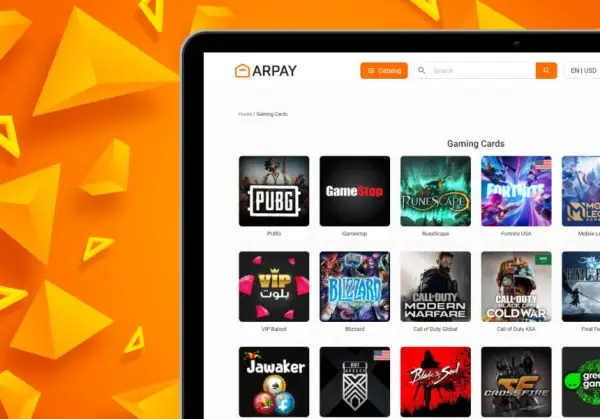
If you are a fan of mobile games or you are a savvy gamer you shouldn’t miss Gaming Gift Cards from Arpay Store.

FAQs
How to access Google Play Games?
Open the app: On your Android phone or tablet, open the Google Play app.
Browse games: Use the search bar or browse through the categories to find the games you want to play.
Install: Tap the game you want to install, then tap the “Install” button to download the game to your device.
Can I play Google Play Games on my laptop?
Yes, you can play Google Play on your laptop using the Google Play app. Follow these steps:
Download the app: Go to the Google Play Games website on your computer.
Install: Click “Download” and follow the instructions to install the app.
Sign in: Sign in with your Google account to sync your game progress across devices.
How to sync Google Play Games?
Sign in: Make sure you’re signed in to the same Google account on all your devices.
Settings: Open the Google Play Games app, go to “Settings,” and ensure “Automatically sign in to supported games” is enabled.
Check Progress: In games that support Google Play Games, your progress will be automatically saved, allowing you to resume playing from where you left off on any other device.
How to play hidden games on Google?
T-Rex Run: When the internet is down in Google Chrome, press the space bar to start the dinosaur game.
Pac-Man: Search for “Pac-Man” in Google and press “Play” to start the game.
Solitaire: Search for “Solitaire” in Google and press “Play” to start the game.
Snake: Search for “Snake” in Google and press “Play” to start the game.

Aya Atef
I'm Aya, a content creator at ARPay, crafting engaging articles about payment gift cards, digital installments, and everything that makes online shopping seamless. Whether it's gaming top-ups or the latest e-commerce trends, I write to level up your shopping experience!