Step 1. Choose your product by searching or browsing our categories.

Step 2. Choose desired product nominal and click Buy now

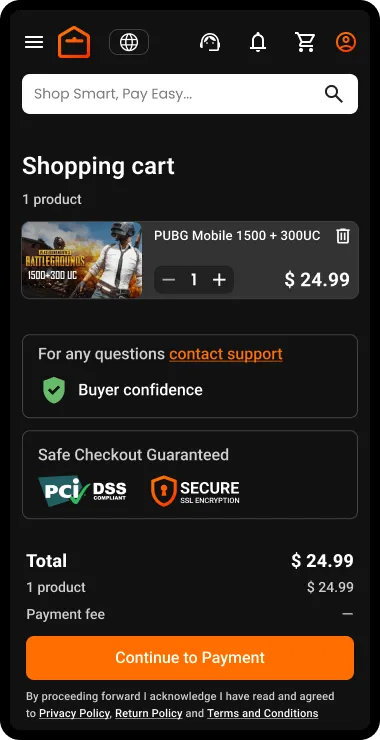
Step 3. View your shopping cart and Continue to payment
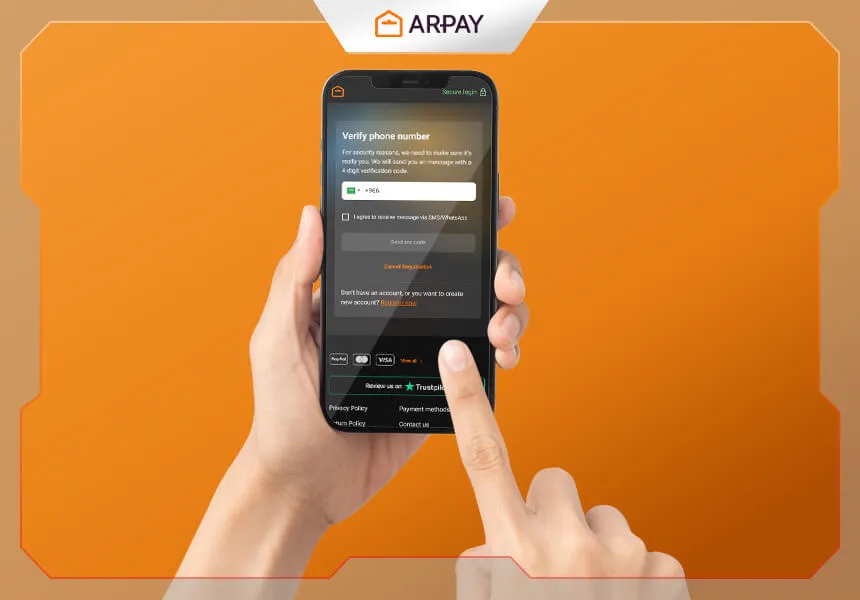
NOTE: if you’re not logged the system will ask you to authenticate yourself. Read the guide How to Register on ar-pay.com
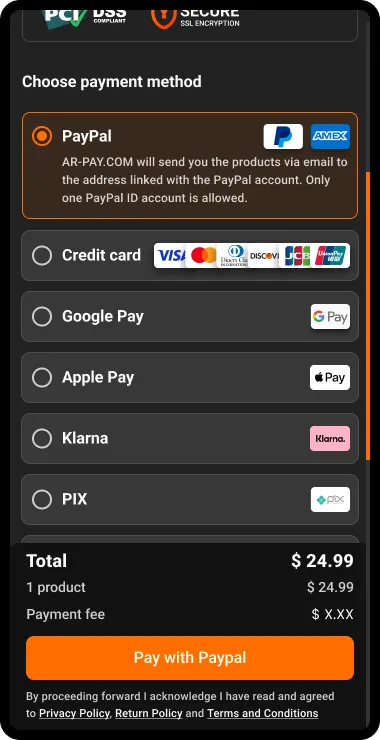
Step 4. Choose Payment method and Pay
Step 5. Validating the payment

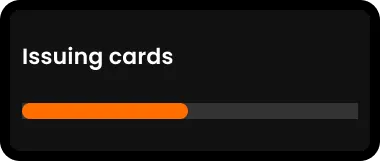
Step 6. Issuing cards
Your order is Completed and you are being redirected to your order page where you have your product codes
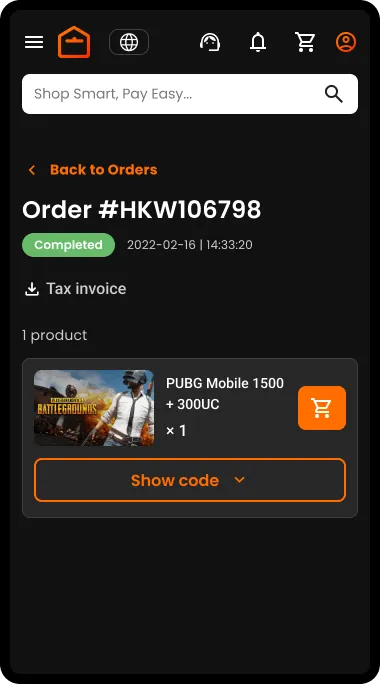
Step 7. Click on the Show code button to see your code
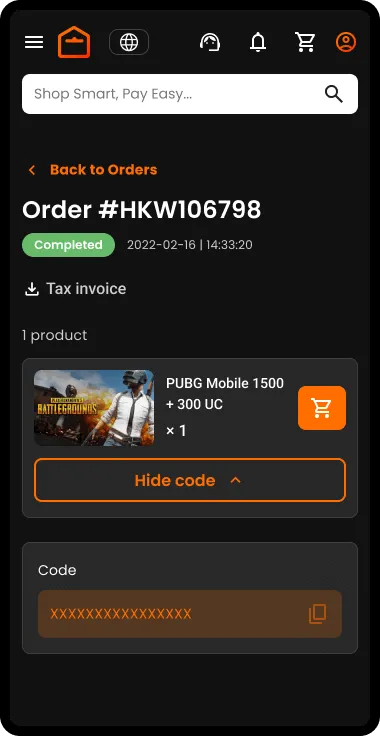
Copy your code and use it
Note: You will also receive an email with a link to your product codes
Before You Start: What to Prepare
Before buying products from AR-PAY, it helps to understand the full purchase flow from product selection to code delivery. The process is designed to be simple: choose a product, select the nominal value, review the cart, pay, wait for validation, and then access your product codes from the order page or the email link.
- Decide which product you want before you start browsing.
- Check the available product nominal values before clicking Buy now.
- Make sure you can log in or authenticate yourself if the system asks.
- Keep access to your email, because a link to your product codes will also be sent there.
Step 1: Find the Right Product
The first step is choosing your product. You can do this by searching directly or by browsing the available categories. Searching is useful when you already know what you want, while browsing categories helps when you want to compare available product options before making a decision.
Take a moment to confirm that the product you open is the one you intend to buy. This is especially important when several products look similar or when there are multiple values available for the same product.
Step 2: Choose the Product Nominal
After selecting the product, choose the desired product nominal. The nominal is the value you want to purchase, so this step should be reviewed carefully before you click Buy now. Once selected, the chosen product and nominal will move forward into your shopping cart.
- Open the product page.
- Select the desired nominal value.
- Click Buy now only after checking the selection.
Step 3: Review Your Shopping Cart
Your shopping cart is the final review point before payment. Here, you should check the product and nominal value before clicking Continue to payment. A quick review can prevent mistakes and help ensure that you are paying for the correct product.
- Confirm the product name.
- Confirm the selected nominal value.
- Make sure the cart contains only the product you want to buy.
If you are not logged in, the system will ask you to authenticate yourself. If needed, follow the registration guide mentioned in the article before continuing with payment.
Step 4: Choose Payment Method and Pay
After continuing to payment, choose the payment method you want to use and complete the payment step. This is the point where your order moves from cart review into payment processing, so make sure the cart details are correct before submitting payment.
If the payment method screen appears, follow the instructions shown there until the payment is submitted. Avoid closing the page too early, because the next step is payment validation.
Step 5: Payment Validation
After you pay, the system validates the payment. This validation step happens before the cards are issued. It is an important part of the order flow because the product codes are not shown until the order is completed and the cards are issued.
During validation, stay on the flow and wait for the next page or status. The article states that after validation, the cards are issued and the completed order redirects you to the order page.
Step 6: Card Issuing and Order Completion
Once payment is validated, the cards are issued. At this stage, your order is completed and you are redirected to your order page. This page is where you can access the product codes connected to your completed order.
The order page is the main place to retrieve your codes immediately after purchase. You will also receive an email with a link to your product codes, which gives you another way to return to them later.
Step 7: Show, Copy, and Use Your Code
On the order page, click the Show code button to display your product code. After the code appears, copy it carefully and use it where required for that product. This is the final step of the purchase journey.
- Open the completed order page.
- Click the Show code button.
- Copy the code exactly as displayed.
- Use the code according to the product’s required redemption process.
Using the Email Link to Access Codes
The article notes that you will also receive an email with a link to your product codes. This is useful if you leave the order page or need to return to the codes later. Keep the email available until you have copied and used the code successfully.
If you cannot immediately find the order page, checking the email link is a practical second route because it points back to the product codes for the completed order.
Practical Tips for a Smooth Purchase
- Search when you know the product name; browse categories when you want to explore options.
- Review the nominal value before clicking Buy now.
- Do not skip the shopping cart review before payment.
- Authenticate yourself if the system asks you to log in or register.
- Wait for payment validation and card issuing before looking for the code.
- Use the Show code button on the completed order page to view your code.
If Something Does Not Look Right
If you are not redirected immediately, remember that the article includes payment validation and card issuing as part of the flow. The product codes appear after the order is completed, so wait for the order page before assuming the process is finished.
If you need to return to your codes later, use the email link sent after purchase. This keeps the completed order accessible without repeating the buying process.
Quick Summary
- Choose a product by search or category browsing.
- Select the desired nominal and click Buy now.
- Review the shopping cart and continue to payment.
- Choose a payment method and pay.
- Wait for payment validation and card issuing.
- Open the order page, click Show code, copy your code, and use it.