

Rocket League throws you into high-speed matches where cars meet soccer in the most chaotic way possible. You’re flipping, boosting, and aerial-ing your way to goals while trying to read bounces that seem impossible to predict.
Here’s the thing: your skills only take you so far if your settings are working against you. Whether you’re stuck in Gold or grinding to GC, the right settings can change your game. Most players stick with defaults and wonder why their aerials feel off or their camera seems sluggish during fast plays.
The good news? A few tweaks can make everything feel smoother, more responsive, and way more consistent.
Get your next PlayStation, Nintendo, Steam, or Xbox game with AR-PAY gift cards.
Why Adjusting Settings Matter in Rocket League?
The Foundation of Consistency
Your camera angle determines how much of the field you see. Your controls decide how quickly you react. Your video settings affect whether you’re playing at 60 FPS with stutters or 144 FPS with butter-smooth gameplay.
Pros spend hours testing their setups because they know that precision matters. When you’re trying to read a ball bouncing off the ceiling at 80 mph, even a slight camera adjustment can mean the difference between a clean touch and a complete whiff.
Small tweaks improve reaction time and ball control. Your muscle memory builds around whatever settings you use, so starting with solid fundamentals means you’re practicing the right habits from day one.
jump into our detailed breakdown and see exactly how the PS5 and PS5 Pro compare in power, visuals, and performance. Check out the full guide here and decide which console truly fits your playstyle.
Best Rocket League Camera Settings
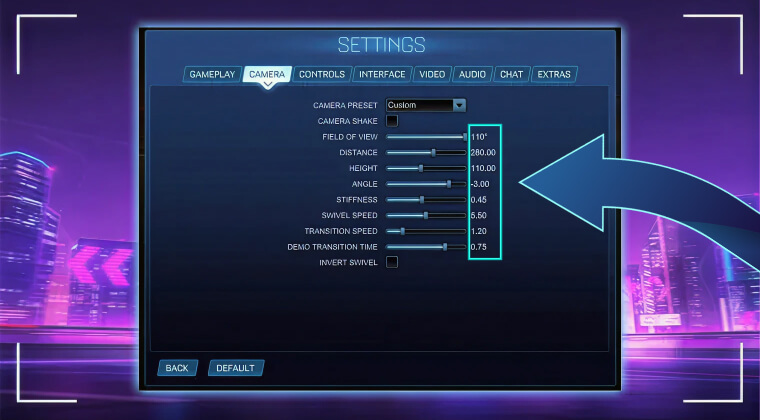
Finding Your Visual Fav Spot
Camera Shake: Off
Turn this off immediately. Camera shake adds unnecessary movement every time you make contact with the ball. It looks cool for about five seconds, then becomes a distraction that throws off your reads and makes you feel like you’re playing in an earthquake.
FOV (Field of View): 110
Crank this to the maximum. You need to see as much of the field as possible. A wider FOV lets you spot opponents rotating, track teammates, and keep the ball in view during aerial plays.
Core Camera Values
- Distance: 260-280
- Height: 100-110
- Angle: -3 to -5
- Stiffness: 0.45-0.60
- Swivel Speed: 5.0-7.0
- Transition Speed: 1.2
These numbers create a balanced view that works for most players. Distance keeps you far enough back to see plays developing. Height gives you a good angle on the ball without feeling too high. The angle tilts your view slightly down for better ground game visibility.
Stiffness controls how tightly your camera follows your car. Lower values (0.45) feel more floaty but give you better awareness. Higher values (0.60) feel tighter but can be harder to track during fast rotations.
Personal Comfort Matters
Test these settings in Free Play for 10-15 minutes. If something feels weird, adjust in small increments. Move distance by 5, height by 5, angle by 1. Your comfort matters more than copying exact numbers.
Best Rocket League Control Settings
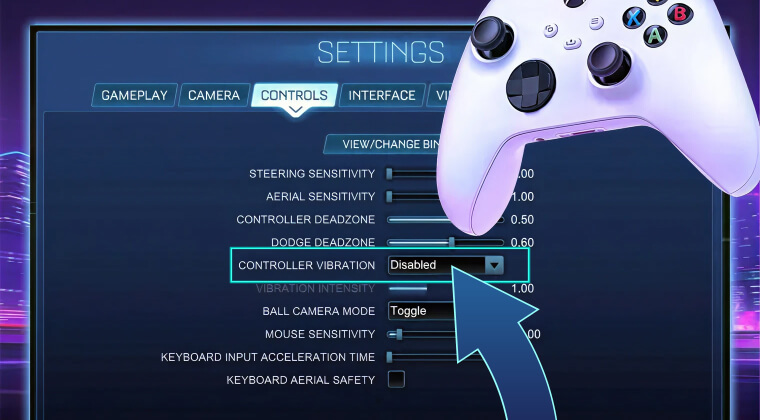
Building Responsive Inputs in Rocket League
Controller Vibration: Off
Vibration drains battery and adds physical feedback that can throw off your inputs during intense moments. You don’t need your controller rumbling when you’re trying to nail a ceiling shot.
Deadzone Configuration
- Dodge Deadzone: 0.80
- Steering Deadzone: 0.05-0.10
- Aerial Sensitivity: 1.4-2.0
Dodge deadzone at 0.80 prevents accidental flips when you’re trying to boost or air roll. Steering deadzone between 0.05-0.10 gives you tight control without stick drift issues. Aerial sensitivity between 1.4-2.0 lets you make quick adjustments in the air without oversteering.
Controller Layout That Works
- Jump: X / A
- Boost: Circle / B
- Powerslide: Square / X
- Air Roll: L1 / LB
This layout keeps your thumb on boost and jump while your index finger handles air roll. You can boost and jump simultaneously without contorting your hand.
Advanced Binding: Air Roll Left/Right
Once you’re comfortable with basic mechanics, bind air roll left and air roll right to separate buttons (usually L1 and R1). This gives you more precise control for freestyle shots and recovery mechanics.
Custom Deadzones for Your Controller
PS5 controllers often need slightly higher deadzones than Xbox controllers due to stick sensitivity differences. If you’re experiencing drift, bump your steering deadzone up by 0.05 increments until it stops.
Rocket League Best Video Settings
Performance Over Prettiness
Rocket League runs fast, and you need your system to keep up. Visual fidelity doesn’t matter if you’re dropping frames during critical moments.
Core Performance Settings
- Resolution: 1080p
- Render Quality: High Performance
- Anti-Aliasing: Off
- V-Sync: Off
- FPS Cap: 144 or Unlimited
- Motion Blur: Off
- Texture Details: Performance
Tip1: Keep resolution at 1080p unless you have a beast PC that can handle 1440p at 144+ FPS consistently. Render quality on high performance mode removes unnecessary visual effects that tank frame rates.
Tip2: V-Sync creates input lag. Turn it off. You might get screen tearing, but the responsiveness gain is worth it. Cap your FPS at your monitor’s refresh rate or go unlimited if you’re chasing every possible frame.
Tip3: Motion blur makes everything look cinematic and terrible for gameplay. Off. Always off.
Brightness and Visibility in Rocket League
Bump brightness slightly above default (around 110-115%). This helps you track the ball against bright arena backgrounds and spot boost pads more easily.
GPU Optimization in Rocket League
Nvidia users should enable low latency mode in their control panel. AMD users can turn on Anti-Lag. Both features reduce input delay between your controller and what happens on screen.
Rocket League Pro Player Settings
What the Best Players Use
Squishy Muffinz
- FOV: 110
- Distance: 270
- Height: 100
- Angle: -3.0
Jstn
- FOV: 110
- Distance: 280
- Height: 110
- Angle: -4.0
Zen
- FOV: 110
- Distance: 260
- Height: 90
- Angle: -5.0
Notice the patterns? Everyone uses 110 FOV. Distance varies between 260-280. Height stays between 90-110. Angle hovers around -3 to -5.
These pros have different playstyles but stick within similar ranges. Zen prefers lower height for better ground game reads. Jstn goes slightly higher for aerial awareness. Squishy splits the difference.
5 Pro Tips to Improve Your Gameplay in Rocket League
- Stick With Your Setup: Changing settings constantly resets your muscle memory. Pick your configuration and commit for at least 50-100 games. Your hands need time to adapt.
- Test in Free Play: Before jumping into ranked, spend 15 minutes in Free Play testing your new settings. Hit the ball around. Do some aerials. Get comfortable with how everything feels.
- Use Custom Training: Load up packs that challenge your weak points. If your aerials feel off, run aerial training with your new settings. If dribbling seems harder, practice ground control.
- Record and Review: Save your replays and watch them back. You’ll spot moments where your camera angle helped or hindered your play. Adjust from there.
- Small Changes Only: If something feels wrong, don’t overhaul everything. Change one value at a time. Test it. Keep or revert. Repeat.
4 Common Mistakes to Avoid in Rocket League
- Constantly Copying Pros: Seeing a pro player’s settings doesn’t mean they’ll work for you. Their muscle memory is built around those numbers. Yours isn’t. Use pro settings as a starting point, not a gospel.
- Leaving Camera Shake On: If you take one thing from this guide, turn off camera shake. It helps nothing and hurts everything.
- Ignoring Performance Issues: FPS drops and input lag kill your consistency. If your game stutters, lower your settings. Smooth gameplay beats pretty graphics every single time.
- Forgetting Hardware Changes: New controller? New monitor? Your old settings might not work the same. A different controller has different stick tension. A 144Hz monitor needs different FPS settings than a 60Hz display.
Conclusion
Your settings create the foundation for everything you do in Rocket League. Camera angles determine what you see. Controls decide how fast you react. Video settings affect how smoothly everything runs.
The numbers in this guide work for thousands of players, but your comfort matters most. Start with these recommendations, test them in Free Play, and make small adjustments until everything clicks.
Ready to take your gameplay to the next level? Tune your setup, hit the pitch, and start climbing the ranks today!
Find all Gaming Consoles Gift Cards you need to play any game you imagine on Ar-Pay Store.

FAQs
What are the most important settings to change in Rocket League?
Turn off camera shake first. Set your FOV to 110. Disable V-Sync and motion blur for better performance. These three changes make the biggest immediate impact on your gameplay and consistency.
Should I copy pro player settings exactly in Rocket League?
Use pro settings as a starting reference point, but don’t copy them exactly. Pros have thousands of hours with their specific configurations. Test their ranges (distance 260-280, height 100-110), then adjust based on what feels comfortable for your playstyle and controller.
How long should I test new settings before changing them again in Rocket League?
Give new settings at least 50-100 games before making major changes. Your muscle memory needs time to adapt. If something feels seriously wrong after 10-15 games, make small adjustments (change one value at a time). Constant switching prevents you from building consistency.

Hager Hesham
Content Writer and your go-to gaming expert. I'm here to share my best practices, valuable strategies, and professional gamer guidance. Also, I'm a gem hunter for the best deals and gift cards, just to enjoy games at almost zero cost with AR-pay.