If you’ve received or purchased a Google Play gift card from ARPAY, you’ll probably want to check your remaining balance before downloading apps, games, or making in-app purchases. Fortunately, viewing your Google Play balance is quick and straightforward, whether you’re on a computer or using the Android app.
To purchase your digital Google Play gift card instantly, visit our official Google Play Gift Card page on ARPAY and choose the amount that best suits your needs.
How to Check Google Play Gift Card Balance
On a Computer
- Go to play.google.com.
- At the top right, select your profile icon.
- Click Payment & Subscriptions.
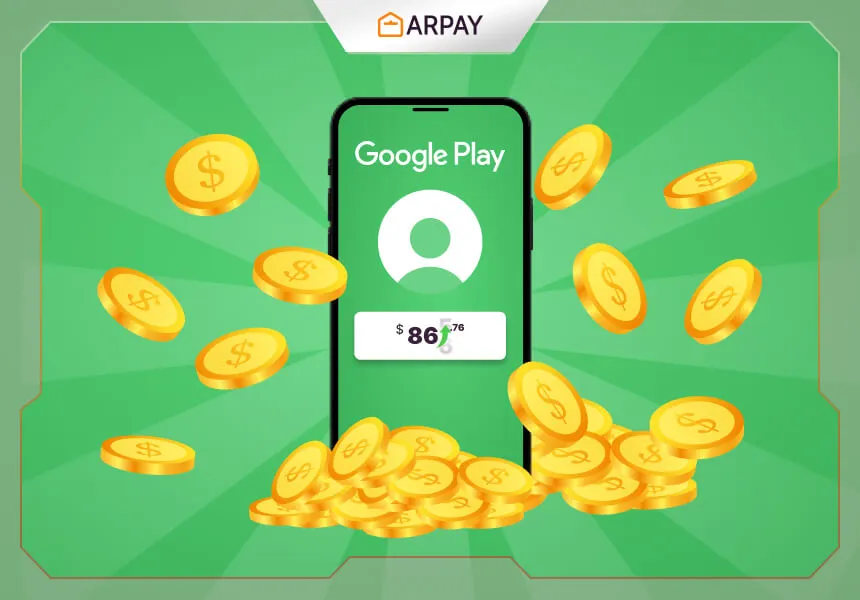
- Your Google Play balance will be displayed, showing all funds from previously redeemed cards, including those purchased via ARPAY.
On an Android Device
- Open the Google Play app.
- At the top right, tap your profile icon.
- Select Payments & subscriptions.
- Tap Payment methods, then Google Play balance to view your current balance.
From here, you can also redeem a new Google Play gift card by selecting the redeem option and entering your code—your balance will update instantly.
Why Balances Matter & Notes for ARPAY Cards
- Google Play stores your redeemed gift card funds in your account until you spend them. This allows you to make purchases over time without worrying about losing your unused balance.
- Gift cards purchased from ARPAY function exactly like Google-issued cards. Once redeemed, the funds are tied to your Google Play account and can be viewed any time under the Google Play balance section.
- If you’re new to buying or redeeming Google Play gift cards, you can also explore our full list of supported payment methods for buying gift cards through ARPAY.
Tip: If you experience issues redeeming your code or the balance doesn’t appear, visit Google Play’s help page or contact support with your order details and code information.
Before You Check: Quick Account Checklist
Before checking your Google Play gift card balance, make sure you are signed in to the same Google account where the card was redeemed. Google Play balances are tied to the account, so using a different profile can make it look like the funds are missing even when they were applied successfully.
- Confirm you are using the correct Google account.
- Check whether the gift card has already been redeemed.
- Keep your ARPAY order details and code information available in case support is needed.
- Use the Google Play website or Android app rather than an unofficial page.
Computer vs Android App: Which Method Should You Use?
Both methods in this guide lead to the same goal: viewing your current Google Play balance. The computer method is convenient if you are already browsing on play.google.com, while the Android app method is useful if you manage apps, games, and in-app purchases directly from your phone.
If you want to redeem a new card and check the result immediately, the Android app flow may feel especially direct because the guide notes that you can select the redeem option, enter your code, and see the balance update instantly.
Expanded Steps for Checking on a Computer
If you prefer using a desktop browser, the process is simple. The most important part is confirming that the profile icon at the top right belongs to the Google account where your ARPAY-purchased card was redeemed.
- Go to play.google.com in your browser.
- Select the profile icon in the top-right corner.
- Click Payment & Subscriptions.
- Review the Google Play balance displayed on the page.
This balance includes funds from previously redeemed cards, including Google Play gift cards purchased through ARPAY. If the balance does not appear as expected, sign out and back in with the correct account before contacting support.
Expanded Steps for Checking on Android
The Android app is another quick way to check your balance, especially if you plan to spend the funds on apps, games, or in-app purchases from the same device. Follow the menu path carefully so you land on the correct balance screen.
- Open the Google Play app on your Android device.
- Tap the profile icon in the top-right corner.
- Select Payments & subscriptions.
- Tap Payment methods.
- Open Google Play balance to view your current funds.
If you also need to redeem a new Google Play gift card, use the redeem option from this area, enter your code, and then return to the balance section to confirm that the funds updated.
What Your Google Play Balance Can Be Used For
The article mentions apps, games, and in-app purchases as common reasons to check your balance. Reviewing your funds before buying helps you decide whether your current balance is enough or whether you should purchase another digital Google Play gift card from ARPAY.
Because redeemed funds remain stored in your Google Play account until you spend them, you do not have to use the full amount immediately. You can save the balance for future purchases and return to the same balance section whenever you want to check it again.
What to Do If the Balance Does Not Appear
If your code was redeemed but the balance does not appear, start with the simplest checks first. Make sure you are signed in to the correct Google account, then refresh the balance page or reopen the Google Play app. If the issue continues, use the support path mentioned in the guide.
- Confirm the code was entered correctly.
- Check that you are using the account where the card was redeemed.
- Review whether the code appears unreadable or already redeemed.
- Contact Google Play support with the code, order details, and purchase information from ARPAY.
Why ARPAY Order Details Matter
Gift cards purchased from ARPAY function like Google-issued cards once redeemed, but your ARPAY order details can still be useful if you need help. If a code is unreadable, already redeemed, or not updating your balance, having the order information ready makes it easier to explain the issue to support.
For a smoother experience, keep a record of the purchase information until you confirm the card has been redeemed and the balance appears correctly in your Google Play account.
Quick Summary
- Check your balance on play.google.com or through the Google Play Android app.
- Make sure you are signed in to the Google account where the card was redeemed.
- Redeemed funds stay in your Google Play account until you spend them.
- ARPAY gift cards function like Google-issued cards once redeemed.
- If a code is unreadable or already redeemed, contact Google Play support with ARPAY order details.