Are you looking for a seamless gaming experience on the go? The Xbox Android app puts key Xbox features in your pocket—so you can stay connected to your friends, manage downloads, check your library, and keep up with what’s happening on your account even when you’re away from your console.
In 2026, the app is still best thought of as a companion: it doesn’t replace your Xbox, but it makes your Xbox life easier. Depending on your device, network, and account features, you may also be able to stream from your console (Remote Play) and browse Game Pass content in one place. Feature availability can vary by region and account type. []
This guide walks through what the Xbox Android app is for, how to install it, the best settings to check first, and a few quick troubleshooting fixes if things don’t work as expected.
Benefits of using the Xbox Android app
The Xbox Android app offers practical quality-of-life upgrades for everyday gaming. The biggest wins come from saving time and staying coordinated with friends:
- Game library management: Browse your owned games and installed titles, and manage your library without needing to turn on the TV. Specific management options may vary. []
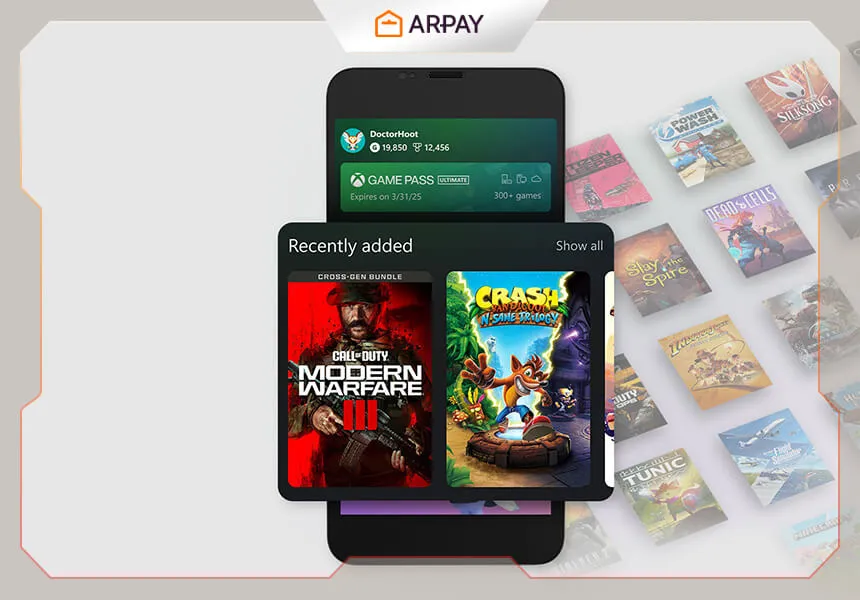
- Game Pass integration: Explore the catalog, see what’s leaving soon, and jump from “I should try that” to “download queued” faster—if your subscription supports those features. []
- Social connectivity: Message friends, see who’s online, share clips/screenshots, and coordinate party time without switching devices.
- Remote Play: Stream from your Xbox console to your phone when you have a strong home network and a stable connection—ideal for quick sessions when the TV is busy. []
- Achievements and progress checks: Track achievements, compare stats, and keep an eye on what you’re close to finishing.
- Store browsing: Check prices, track wishlists, and view add-ons. The ability to purchase directly inside the app can change over time due to platform policies and updates. []
How to download and install the Xbox Android app
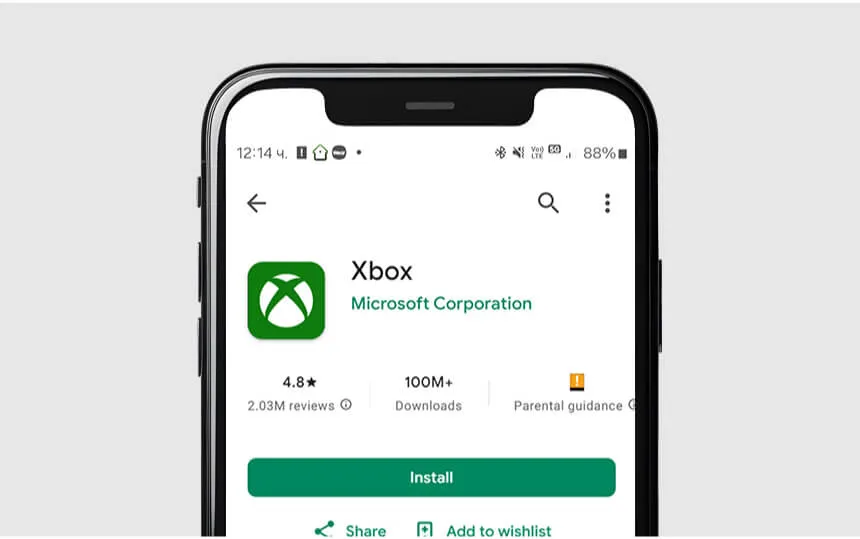
Installing the app is straightforward. For best results, make sure Android is updated and you have enough storage for downloads and cached media. Minimum Android version requirements can change with updates. []
- Open the Google Play Store on your Android device.
- Search for “Xbox”.
- Choose the official Xbox app (published by Microsoft).
- Tap Install, then wait for the download to complete.
- Open the app and sign in with your Microsoft account.
If you use multiple Microsoft accounts (for example, one for purchases and one for friends), double-check you’re signed into the one that owns your games and subscriptions before troubleshooting anything else.
Maximizing your experience on the Xbox Android app
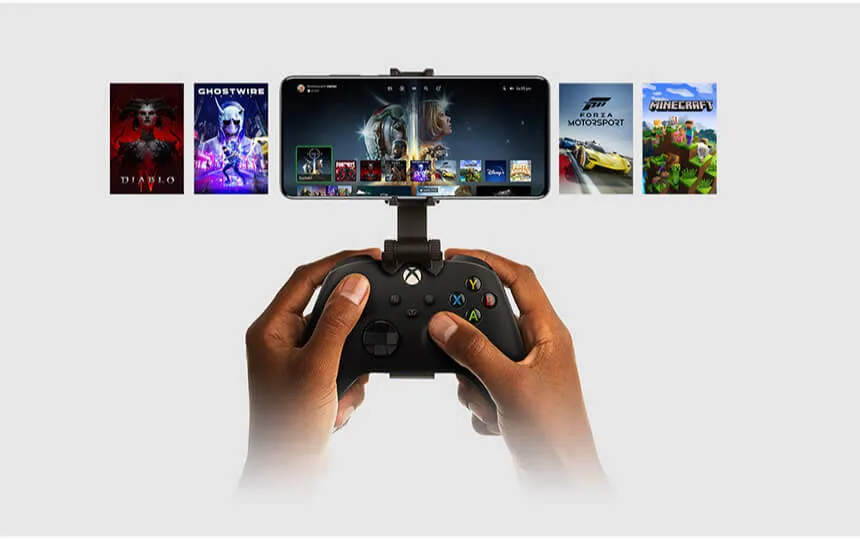
Once you’re signed in, a few quick setup choices can make the app feel dramatically smoother day to day. These are the areas worth checking first:
- Notifications (trim the noise): Keep what matters—messages, party invites, download completion—and turn off anything that’s just spammy for your routine.
- Remote Play readiness: For the best results, use strong Wi‑Fi, keep your controller charged, and reduce background downloads on the same network. Setup steps and requirements can vary by console model and app version. []
- Manage installs like a pro: When you see a game you want to try later, queue the install remotely so it’s ready by the time you sit down at the console. Exact capabilities depend on your console settings. []
- Profile and privacy checks: If you share clips or join parties, review your privacy defaults. A small tweak (like who can message you) can prevent a lot of annoyance later. Specific menu locations may change. []
Want to top up before a weekend session? Use AR-PAY Gaming to grab gaming credit and gift cards from one spot. []
Updates and what’s new in 2026
The Xbox Android app changes regularly, so it’s smart to treat “what’s new” as version-dependent. In the past, announcements have included shifts in how store purchases work inside the app, UI changes for social features, and improvements to streaming/Remote Play performance. If a guide mentions a feature starting in late 2024, assume details may have changed by 2026 and verify in your current app build. []
Quick troubleshooting (common fixes)
If the app feels buggy, won’t sign in, or Remote Play is unstable, try these practical fixes before you burn time on deeper settings:
- Check the basics first: Switch Wi‑Fi on/off, confirm you’re not in Battery Saver, and make sure date/time are set automatically (bad time sync can break sign-ins). []
- Update the app: Many issues disappear after an update—especially after major UI changes or new Android versions.
- Restart your phone (seriously): It clears stuck background processes that can interfere with sign-in, notifications, and controller pairing.
- Remote Play is laggy: Use 5 GHz or a strong modern Wi‑Fi setup, reduce other streaming on the same network, and try sitting closer to the router. If your upload speed is weak, performance will suffer. []
Conclusion
The Xbox Android app is a strong companion for gamers who want to stay connected, manage installs, and keep their Xbox social life moving even when they’re away from the console. In 2026, the best experience comes from a solid sign-in setup, tuned notifications, and a good network for Remote Play. If you run into issues, start simple—update, restart, and check connectivity—then move on to Remote Play-specific settings if you need them. []