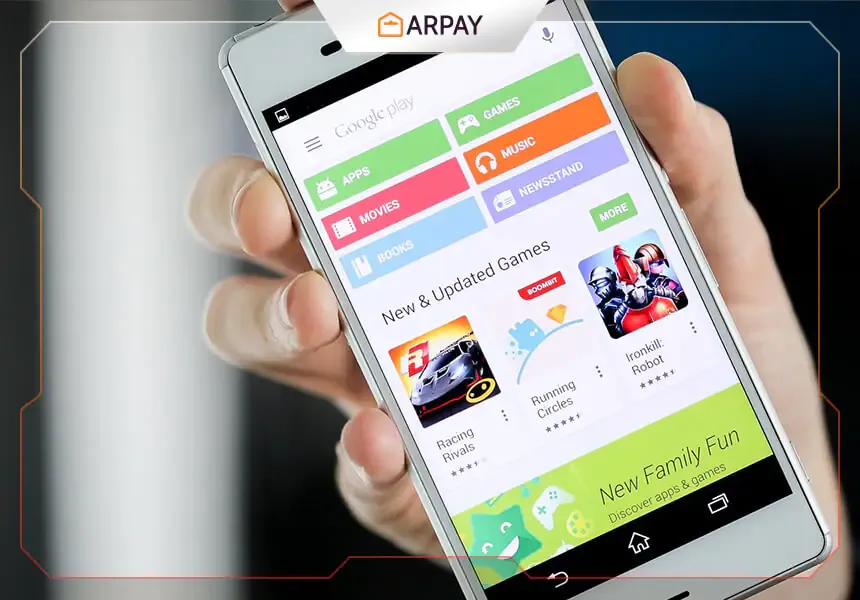
Android device owners often think Google Play Store is only a place to download apps, e-books, movies, and other digital content. Of course, the basic features are familiar: you can install free apps, buy paid apps, and charge your Google Play balance using prepaid Google Play cards. But there are also hidden Google Play Store features that make the experience more practical, safer, and easier to manage.
This guide highlights useful Google Play options that many users overlook, from wish lists and content filtering to purchase protection, desktop installation, prepaid card redemption, and refund requests.
Google Play's Hidden Features
1- Add your favorite apps to “Wish List”
If you are a movie fan, you probably understand the value of keeping a viewing list on IMDB for titles you want to watch later. Google Play offers a similar idea through the “Wish List” feature, which lets you save Android apps you might want to use or buy someday.
To add an app to your Wish List, open the app page from the Google Play Store and click the + icon at the top. This makes it easier to return later instead of searching for the same app again.
2- Use the content filtering feature
Android apps are rated on Google Play Store according to maturity level. This helps you control the type of content that appears, especially if children also use your phone. It is one of the most useful safety-related settings inside Google Play.
- Go to Google Play Store settings.
- Select Filter Content.
- Choose the maturity level that matches your preference.
3- Take a look at your apps in Wish List
After adding apps to your Wish List, you can return to them whenever you want. From there, you can decide whether to install, buy, or remove each app. This is useful when you are comparing apps or waiting before making a purchase.
To access the list, swipe from right to left from the Google Play Store homepage, choose “My Wish List,” and review the apps you previously added.
4- Add a password to restrict app purchases
If more than one person uses the same Android device, adding a password can help secure and restrict app purchases. This is especially important if your Google Wallet contains money or if children can access the device.
- Open Google Play Store and go to Settings.
- Select the password option.
- Enter your password and press OK.
5- Take a look at your apps and orders
Google Play also lets you track spending within your apps and orders. This is helpful when you want to review past purchases, monitor paid downloads, or simply understand where your Google Play balance has gone.
To do this, open the Google Play Store, click the gear button, then select “My Orders.”
6- Disable update notifications
By default, Google Play Store may notify you whenever a new app update is released. If these alerts become annoying, you can turn them off from the settings.
- Open the Google Play app.
- Choose “Settings.”
- Uncheck Notifications.
7- Redeem Google Play Card Code
If you have a prepaid Google Play gift card, you can activate it directly from the Play Store. This applies to cards purchased from places that sell prepaid Google Play cards, such as ar-pay, which is mentioned as one of the best sites for selling Google Play cards and prepaid cards.
- Scroll from left to right from the main menu in Google Play Store.
- Select Redeem.
- Enter the Google Play card code you obtained from ar-pay after completing the purchase process.
- Click on Redeem to activate the balance.
8- See the full range of Android devices
If you use multiple Android devices from a single Google account, Google Play lets you view your entire device collection from one place. This can make app management easier, especially when installing apps across different phones or tablets.
Open the Google Play Store, select the gear icon, then open Settings to manage the devices connected to your account.
9- Stop adding new apps to the home screen
Some users do not want every newly installed app to appear automatically on the home screen. Google Play gives you a setting to stop this default behavior and keep your home screen cleaner.
- Swipe from left to right from the Google Play Store home screen.
- Select Settings.
- Uncheck Add icon on the home screen.
10- Install an app from your desktop
Google Play Store allows you to install an app on your Android device directly from a desktop browser. This is useful when you are browsing apps on a computer and want to send the installation to your phone or tablet.
- Open Google Play Store in your browser.
- Select the application you want to download.
- Click the install button.
- Select the device and click the install button again.
11- Request to return purchased applications
Sometimes purchased apps can be disappointing. In that case, Google Play allows you to request a refund from the app developers. There is a 15-minute window after purchase in which you can get an instant refund for the app.
To begin, click the gear icon and choose My Orders. From there, you can review the purchased app and start the return process when eligible.
Why these Google Play features matter
These hidden Google Play Store features help you do more than just download apps. You can save apps for later, protect purchases with a password, filter content for safer use, redeem prepaid Google Play cards, manage devices, install apps from desktop, and request refunds within the available window.
For users who buy Google Play prepaid cards from ar-pay, the redeem option is especially important because it turns the card code into usable Google Play balance. Combined with purchase controls and order tracking, it gives you better control over app spending and digital content.