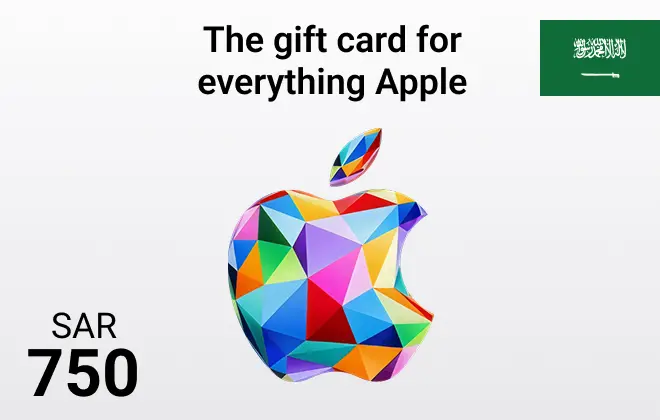
Apple Gift Card KSA 750 SAR

4.5

Apple Gift Card KSA 750 SAR

Enjoy effortless access to apps, music, movies, and more with Apple Gift Cards KSA. Your instant key to the best of Apple's digital world, now at ar-pay.

Saudi Arabia

750 SAR

1

For any questions contact support

SSLPCi DSS Complant

PayPalMastercardVisa

Buy Apple KSA 750 SAR Gift Card Online from ARPay

The Apple KSA 750 SAR Gift Card is your gateway to premium digital content across all Apple platforms. Whether you’re using an iPhone, iPad, Mac, or Apple TV, this card allows you to purchase apps, games, music, movies, TV shows, iCloud storage, and more directly from the Saudi Arabia region of the App Store and iTunes.

Perfect for Apple users and gift-givers alike, this high-value card offers flexibility, convenience, and immediate access to entertainment and tools that enhance your digital lifestyle. Delivered digitally through ARPay, this gift card is ideal for birthdays, holidays, or rewarding someone with the freedom to choose what they love.

Why Choose This Gift Card?

  • Compatible with all Apple devices and Apple IDs registered in Saudi Arabia.
  • Instant delivery through ARPay’s secure digital platform.
  • Perfect for personal use or gifting — no shipping or delays.
  • No expiration date — redeem whenever it suits you.

Benefits

  • Wide Content Access: Purchase paid apps, premium games, and subscriptions on the App Store.
  • Entertainment Variety: Buy music, rent or purchase HD movies, and enjoy exclusive TV shows.
  • iCloud Services: Use your balance for iCloud+ storage upgrades and Apple subscriptions.
  • Secure & Flexible: No need to link a credit card — just redeem and spend.

How to Use

  1. Open the App Store or iTunes Store on your Apple device.
  2. Scroll down and tap on “Redeem.”
  3. Sign in with your Apple ID if prompted.
  4. Enter the 750 SAR gift card code received from ARPay.
  5. Tap “Redeem” to apply the balance to your account instantly.

How to Redeem

To redeem, simply launch the App Store or iTunes Store, scroll to the bottom, and tap “Redeem.” Sign in, input the code from ARPay, and your balance will be available for purchases across the Apple ecosystem. It’s quick, secure, and easy.

Terms and Conditions

  • Valid only for Apple ID accounts registered in Saudi Arabia.
  • Non-refundable and cannot be exchanged for cash or other cards.
  • Ensure your Apple ID region is set to KSA before redemption.
  • Code is for one-time use only and cannot be replaced if lost or stolen.

Note

This card is delivered digitally through ARPay for instant access. Double-check your Apple ID region before redeeming to ensure successful balance activation. ARPay ensures fast delivery, secure transactions, and dependable service every time.


No, App Store & iTunes KSA Gift Cards do not expire. App Store & iTunes KSA Gift Cards are prepaid cards that can be used to purchase mobile top-ups, data bundles, and other services from Mobily. They are not credit cards or debit cards, so they do not have an expiration date. As long as you have a valid App Store & iTunes KSA Gift Cards , you can use it to purchase services from Mobily, even if it has been sitting in your drawer for years. However, there are a few exceptions to this rule. Promotional App Store & iTunes KSA Gift Cards , such as those that are given away as prizes or rewards, may have expiration dates. These expiration dates are typically listed on the gift card itself.

Yes, App Store & iTunes KSA Gift Cards are region-specific. This means that a App Store & iTunes KSA Gift Cards purchased in one region may not be valid in another region. The region of a App Store & iTunes KSA Gift Cards is determined by the country in which it was purchased. For example, a App Store & iTunes KSA Gift Cards purchased in Saudi Arabia will only be valid in Saudi Arabia. If you try to redeem a App Store & iTunes KSA Gift Cards from a different region, you will receive an error message. You will need to contact Mobily customer service for assistance in order to redeem the gift card. Here is a list of the regions where App Store & iTunes KSA Gift Cards are valid: Saudi Arabia United Arab Emirates Kuwait Qatar Bahrain. Oman

There are two ways to redeem a App Store & iTunes KSA Gift Cards: By calling Mobily: Dial 1400PIN*ID number#. Enter the PIN and ID number from your App Store & iTunes KSA Gift Cards. Press #. By visiting a Mobily store: Bring your App Store & iTunes KSA Gift Cards to a Mobily store. Give the gift card to the cashier. The cashier will redeem the gift card and add the funds to your Mobily account. Here are the steps on how to redeem a App Store & iTunes KSA Gift Cards by calling Mobily: Dial 1400. Enter your Mobily phone number. Enter the PIN from your App Store & iTunes KSA Gift Cards. Enter your ID number. Press #. The funds from your App Store & iTunes KSA Gift Cards will be added to your account and you will be able to use them to purchase services from Mobily.

There are a few ways to check your App Store & iTunes KSA Gift Cards balance: By calling Mobily: Dial 1400. Enter your Mobily phone number. Enter the PIN from your App Store & iTunes KSA Gift Cards. Press #. The automated system will then tell you your App Store & iTunes KSA Gift Cards balance. By visiting a Mobily store: Bring your App Store & iTunes KSA Gift Cards to a Mobily store. Give the gift card to the cashier. The cashier will be able to check your App Store & iTunes KSA Gift Cards balance for you. By using the Mobily app: Download the Mobily app from the App Store or Google Play. Open the app and sign in to your account. Tap on the My Account tab. Tap on Gift Cards.

Here are some of the places where you can use a App Store & iTunes KSA Gift Cards: Mobily stores: You can use your App Store & iTunes KSA Gift Cards at any Mobily store in Saudi Arabia. Simply present the gift card to the cashier and they will be able to top up your balance or pay your bill for you. Mobily website: You can also use your App Store & iTunes KSA Gift Cards to top up your balance or pay your bill online through the Mobily website. Simply enter the gift card code and your Mobily phone number, and the amount will be credited to your account. Mobily app: You can also use your App Store & iTunes KSA Gift Cards to top up your balance or pay your bill through the Mobily app. Simply open the app, tap on "Top Up", and enter the gift card code. The amount will be credited to your account immediately.

You cannot add a App Store & iTunes KSA Gift Cards to Wallet. Wallet is a digital wallet that allows you to store credit cards, debit cards, and gift cards from participating merchants. App Store & iTunes KSA Gift Cards are not currently supported by Wallet. However, you can still use your App Store & iTunes KSA Gift Cards to purchase items from participating merchants. To do this, you will need to enter the PIN from your App Store & iTunes KSA Gift Cards when you checkout. The funds from your App Store & iTunes KSA Gift Cards will then be deducted from your balance and you will be able to complete your purchase. You can also check your App Store & iTunes KSA Gift Cards balance by calling 1400 or by visiting a Mobily store.

To contact App Store & iTunes KSA Gift Cards customer support, you can try the following methods: Phone: Call Mobily's customer support hotline. Depending on your location, you can dial 1100 from within Saudi Arabia to reach their customer service representatives. Email: Send an email to Mobily's customer support team at care@mobily.com.sa. Provide a detailed explanation of your issue or question, and include relevant information. Online Chat: Visit www.mobily.com.sa, and look for a live chat option. This will allow you to communicate with a customer service representative. Social Media: Reach out to Mobily's customer support team through their official social media accounts on platforms.

No, a App Store & iTunes KSA Gift Cards will not ask you to add additional payment details when you redeem it. App Store & iTunes KSA Gift Cards are prepaid cards that can be used to purchase mobile top-ups, data bundles, and other services from Mobily. They are not credit cards or debit cards, so you do not need to provide any additional payment information when you redeem them. However, if you are redeeming a App Store & iTunes KSA Gift Cards online, you may be asked to create an account or to enter your email address. This is so that Mobily can send you a confirmation email and so that you can track your redemption history.

To buy a App Store & iTunes KSA Gift Cards voucher with PayPal from Codashop, GiftCards.com, or Raise, then you will need to: Go to the Codashop, GiftCards.com, or Raise website. Select the country or region that you want to purchase the App Store & iTunes KSA Gift Cards voucher for. Select the amount of the App Store & iTunes KSA Gift Cards voucher that you want to purchase. Select PayPal as your payment method. Enter your PayPal login information and click on the Pay button. Once you have paid for the App Store & iTunes KSA Gift Cards voucher, you will receive a code that you can redeem on the Mobily website or on the Mobily app.

Sending a App Store & iTunes KSA Gift Cards voucher as a gift is easy. Here are a few options: Buy the gift card online and email it to the recipient. Purchase a gift card from trusted websites like Codashop or GiftCards.com and have it sent directly to the recipient via email. They can redeem it on the Mobily website or app. Buy a physical gift card and mail it to the recipient. Create a custom App Store & iTunes KSA Gift Cards voucher. Personalize the voucher on websites like Codashop or GiftCards.com by selecting the UC amount and adding a personal message. The customized voucher can be printed or emailed.

No, you cannot use a App Store & iTunes KSA Gift Cards for family sharing purchases. Family sharing is a feature that allows you to share your Mobily account with up to five family members. However, it does not allow you to share gift cards. If you want to use a App Store & iTunes KSA Gift Cards to purchase mobile top-ups, data bundles, or other services for a family member, you will need to redeem the gift card on their account. You can do this by having them enter the code from the gift card on the Mobily website or on the Mobily app. Once the gift card has been redeemed, the funds will be added to their account and they will be able to use them to purchase services from Mobily.

You can use a App Store & iTunes KSA Gift Cards to purchase mobile top-ups, data bundles, and other services from Mobily. Mobile top-ups: You can use your App Store & iTunes KSA Gift Cards to top up your Mobily phone number. This will add more airtime to your account so that you can make calls, send text messages, and use the internet. Data bundles: You can use your App Store & iTunes KSA Gift Cards to purchase data bundles. International roaming: You can use your App Store & iTunes KSA Gift Cards to pay for international roaming charges. Other services: You can also use your App Store & iTunes KSA Gift Cards to purchase other services from Mobily, such as music streaming, video streaming, and cloud storage.

Here are the steps on how to use a App Store & iTunes KSA Gift Cards: Find the 16-digit code on the back of your App Store & iTunes KSA Gift Cards. Go to the Mobily website or open the Mobily app. Sign in to your account. Click on the Gift Cards tab. Enter the 16-digit code from your App Store & iTunes KSA Gift Cards. Click on the Redeem button. The funds from your App Store & iTunes KSA Gift Cards will be added to your account and you will be able to use them to purchase services from Mobily. You can also redeem your App Store & iTunes KSA Gift Cards by calling 1400 and following the instructions.

You need to have a Mobily account to redeem a App Store & iTunes KSA Gift Cards. You can create a Mobily account for free on the Mobily website or on the Mobily app. Here are the steps on how to create a Mobily account: Go to the Mobily website or open the Mobily app. Click on the Sign Up button. Select your country or region. Enter your email address and create a password. Enter your date of birth. Select your gender.. You will receive a confirmation email. Click on the link in the email to activate your account.