So, you just unboxed your Xbox Ally. Nice choice. The pitch is easy to understand: handheld freedom, PC flexibility, and a front-end experience built to feel much closer to Xbox than a standard Windows laptop ever could. But that mix is also why the first hour matters so much. A handheld gaming PC can feel fantastic when everything is updated, organized, and configured correctly. Leave the setup half-finished, and you can run straight into the usual Windows-on-a-gaming-device annoyances before the magic has time to land.
The good news is that the broad shape of the device is much clearer in 2026. Xbox’s official ROG Xbox Ally page confirms features like the Xbox full screen experience, Game Bar access through the Xbox button, and an aggregated library that can surface supported games from Xbox and other PC storefronts. It also confirms two core versions: ROG Xbox Ally with 16GB RAM and 512GB storage, plus ROG Xbox Ally X with 24GB RAM and 1TB. That gives us a solid starting point for a real beginner guide, even if some exact battery, wattage, and app-specific workflow claims still deserve caution.
1) Update everything before you judge performance
This is the least glamorous advice in the guide, and it is still the most important. The Xbox Ally is not a sealed console where one system update quietly handles everything. It sits at the intersection of Windows, Xbox software, ASUS utilities, firmware, drivers, and store apps. That means a rough first impression is sometimes just an unfinished setup in disguise.
Start with the built-in device-management software, then move to Windows Update, then check the Microsoft Store and Xbox app. The exact menu labels can shift over time, especially if ASUS revises Armoury Crate flows or if Xbox adjusts the handheld interface, but the principle stays the same: update the control software, update the operating system, and update the storefront apps before you start measuring frame rate, stability, or battery behavior. Specific claims about exact update-center naming and every step in the path should still be double-checked against the current firmware build.
2) Learn what the special buttons actually do
A lot of first-day confusion comes from assuming every button behaves like a normal Xbox controller. This is still a PC handheld, so some controls are there to jump between gaming layers rather than just game menus. The official Xbox page helps here: it says pressing the Xbox button gives quick access to essential tools and customizable widgets with Game Bar, while holding the Xbox button lets you use open apps. That alone tells you the device is designed around fast multitasking rather than single-purpose console navigation.
That matters because the Ally becomes easier to live with once you stop treating its extra buttons as mystery hardware. One control is about Xbox-side access. Another is about device-level tuning. Another may jump you toward a unified or semi-unified library view depending on how your apps are set up. The exact role of every side button can vary slightly by software version or model messaging, so if your interface does not match an older guide word for word, do not panic. The big idea is to build muscle memory early so you are not dragging yourself through Windows menus every time you want to check a game, alter power behavior, or switch tasks.
3) Set up offline play before you travel
Handheld gaming only feels truly portable when it still works outside your home network. If you plan to use Game Pass titles, downloaded PC games, or anything tied to Microsoft licensing, offline preparation is not optional. It is the difference between a useful commute device and a very expensive way to stare at a sign-in prompt.
The safest habit is simple: while you still have a connection, sign into the relevant apps, confirm your library syncs correctly, and launch the games you care about at least once. Older setup guides often describe very specific offline-permission toggles in the Microsoft Store and Xbox app, and that general advice is directionally sensible, but the exact wording, location, and limitations of offline settings should be checked against current Microsoft support documentation before publication. What is definitely true is that handheld freedom gets much better when you test offline behavior before the trip instead of during it.
4) Treat performance modes like tools, not magic
One of the easiest mistakes new owners make is chasing a single best setting for every game. That is not how the Ally works. A handheld like this lives on compromises: noise versus battery, battery versus frame rate, frame rate versus image quality, and portability versus plugged-in power. If you accept that early, the device starts making much more sense.
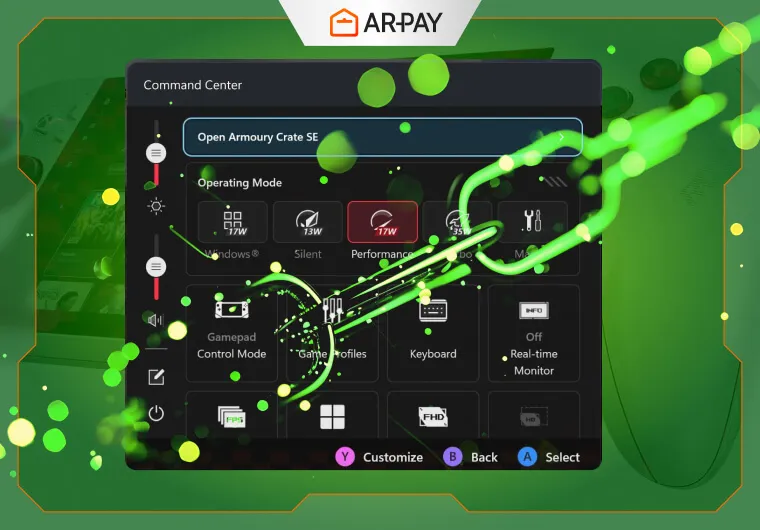
Use lighter settings for indies, emulation, older games, and cloud-heavy sessions. Use middle-tier performance profiles for the bulk of your library. Save the most aggressive modes for titles that genuinely benefit from them, especially when you are near a charger. Many older articles assign exact watt targets and very specific battery-life ranges to each mode. Those numbers can be helpful as rough expectations, but they vary by game, screen brightness, refresh settings, background activity, and software revision, so they should not be treated as universal promises.
The smarter mindset is to profile your habits instead of hunting the most powerful preset. If your typical session is thirty to forty minutes of Hades, Balatro, or Hollow Knight, you do not need the same tuning strategy as someone trying to push a demanding open-world game in a hotel room. The hidden performance is not always higher wattage. Sometimes it is choosing the mode that keeps the device quieter, cooler, and more consistent for the kind of games you actually play.
5) Build a cleaner long-term setup
The Ally gets better over time if you treat it like a system you curate instead of a toy you leave in its default state forever. Start by deciding where you actually buy and launch games. Xbox’s official page already leans into the idea of an aggregated library, and that is a real strength of the platform. If your Xbox, Steam, and other PC purchases can live in one more coherent routine, the handheld stops feeling fragmented.
That also means pruning what you do not need. Unused apps, trial software, auto-start clutter, and random overlays can all make a handheld feel heavier than it should. The point is not to turn setup into a weekend-long optimization project. It is to remove friction. Keep the apps you actually use, install the launchers you trust, and do not be afraid to make the device feel like yours.
Accessories fit into the same idea. Extra storage is often the first meaningful upgrade because modern game sizes are brutal. A case matters because this is a travel device, not a shelf console. A dock matters if you want the Ally to double as a desk or living-room machine. Battery-care features in ASUS software may also help if you keep the device plugged in often, but exact claims about long-term battery-health percentages and every branded battery tool should be verified against the current ASUS app suite.
What is worth being skeptical about
A lot of handheld-PC advice hardens into myth very quickly. Exact anti-cheat warnings tied to switching modes mid-match, exact offline-license refresh timelines, exact charge-behavior benefits, and exact hours-per-mode battery promises all sound authoritative because they are concrete. They are also the claims most likely to age badly. If you are refreshing a 2026 guide, the responsible move is to keep the practical tip and soften the brittle number unless you can directly source it.
Conclusion
The Xbox Ally does not need a complicated initiation ritual, but it does reward a smart first setup. Update the stack before you benchmark it. Learn the buttons that separate Xbox navigation from device control. Test offline play while you still have internet. Use performance modes with intention instead of ego. Then clean up your long-term library, storage, and accessory plan so the handheld fits your life instead of fighting it. Do that, and the Ally starts feeling less like a tiny Windows puzzle and more like the portable Xbox-adjacent gaming machine people hoped it would be.